Search Term Matchtype ValueTrack: Separate AI Max Clicks Now
The new search term matchtype ValueTrack parameter in Google Ads flags AI Max broad expansion clicks. What it returns and how to add it to tracking.

In this article
Google Ads has added a new search term matchtype ValueTrack parameter, written as {search_term_matchtype}, that finally lets advertisers tell AI Max broad expansion clicks apart from normal keyword clicks in their own analytics. Until now, those expansion clicks looked identical to standard keyword traffic in a tracking URL.
The parameter now appears in Google’s help page on setting up tracking with ValueTrack parameters. Google describes it as “the match type of the search term that triggered your ad”, returning “e” for exact, “p” for phrase, “b” for broad, or “a” for AI Max broad expansions and keywordless matches. Google has not published a dated announcement for it.
If you run AI Max for Search campaigns and judge performance in GA4, a CRM or a BI tool rather than only inside Google Ads, this is the most useful tracking change of the month. It gives you a way to measure what AI Max adds on top of your keywords.
What the search term matchtype ValueTrack parameter returns
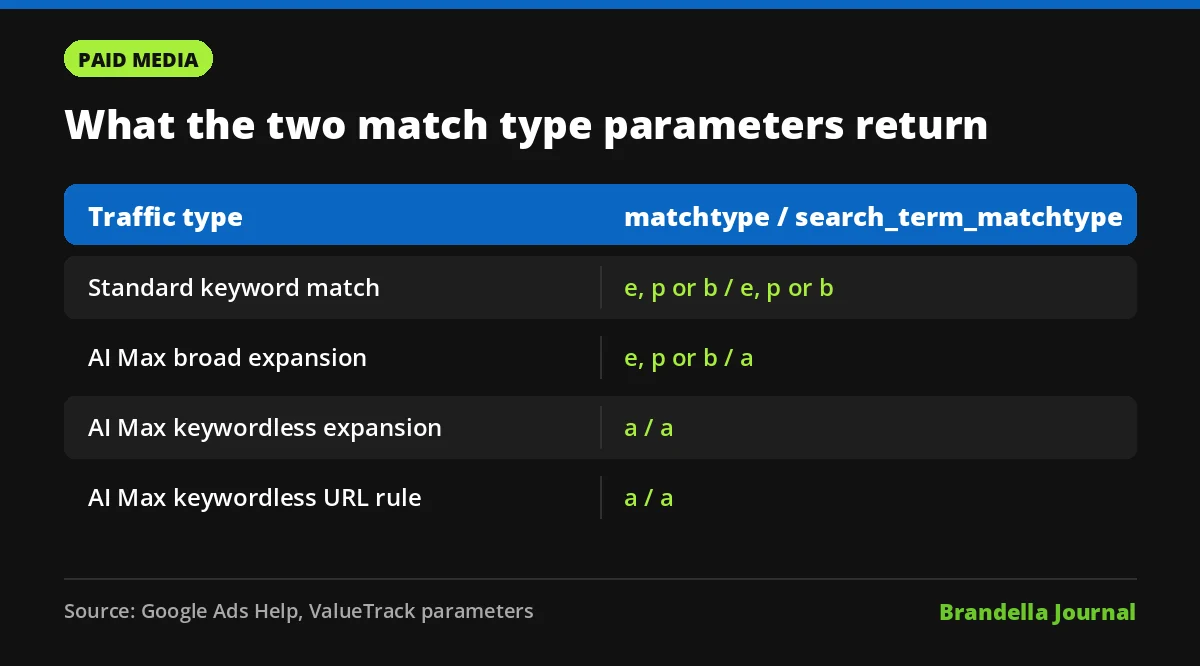
The key difference is between the keyword and the search term. The older {matchtype} parameter reports the match type of the keyword that triggered the ad. For an AI Max broad expansion, the keyword is still one of your own, so {matchtype} returns e, p or b just like a normal click.
The new parameter reports how the search term itself was matched. For a broad expansion it returns “a”, which is the signal advertisers have been missing. Relevant Audience mapped the values in a table on November 12, 2026, and noted that archived copies of Google’s help page from October 28 listed only three parameters in the AI Max section, so the new one was added after that date.
| Traffic type | {matchtype} | {search_term_matchtype} | {targetid} | {keyword} |
|---|---|---|---|---|
| Standard keyword match | e, p or b | e, p or b | kwd- plus keyword ID | Matched keyword |
| AI Max broad expansion | e, p or b | a | kwd- plus keyword ID | Matched keyword |
| AI Max keywordless expansion | a | a | kwl-3500001 or kwl- plus URL rule ID | Empty |
| AI Max keywordless URL rule | a | a | kwl- plus URL rule criterion ID | Empty |
Why AI Max traffic was hard to isolate before
AI Max for Search campaigns combines several features: improved search term matching that goes beyond your keywords, keywordless targeting based on your assets and site, text customization of headlines and descriptions, and final URL expansion.
Keywordless clicks were already easy to spot, because {matchtype} returns “a” and {targetid} starts with kwl-. Broad expansions on your existing keywords were the blind spot. They carried your keyword ID and your keyword text, so in analytics they blended into the traffic you had chosen yourself.
That made one simple question hard to answer: are the extra queries AI Max finds for my keywords as good as the ones I picked? The new parameter makes that question answerable outside Google Ads.
How to read the combinations
Based on the table in Google’s help content as mapped by Relevant Audience, the logic is:
- {matchtype} is e, p or b and {search_term_matchtype} is a: AI Max broad expansion on one of your keywords.
- {matchtype} is e, p or b and {search_term_matchtype} is not a: standard keyword traffic.
- {matchtype} is a: AI Max keywordless traffic. Check {targetid} to see whether it came from the default keywordless setup or a URL rule.
What advertisers should do now
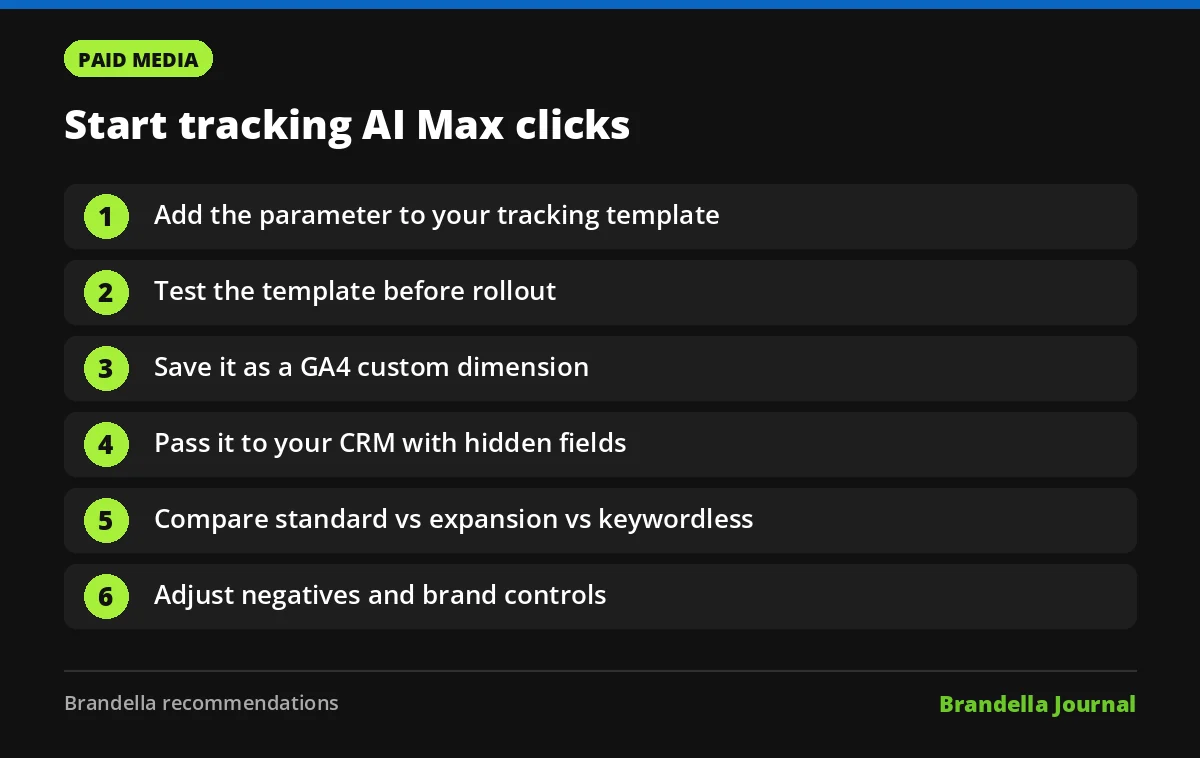
The steps below are Brandella recommendations. Test any tracking template change on one campaign before rolling it out across the account.
- Add the parameter to your tracking template. At account or campaign level, append it as a custom URL parameter, for example
{lpurl}?utm_source=google&utm_medium=cpc&mt={matchtype}&stmt={search_term_matchtype}&tid={targetid}. Keep your existing UTM parameters intact. - Use the Test button. Google Ads lets you test a tracking template. Confirm the final URL loads and the parameters appear.
- Capture it in analytics. In GA4, register stmt and mt as event scoped custom dimensions so you can report on them. If you use Google Tag Manager, read them from the page URL with a URL variable. Our guide to GA4 custom event tracking with GTM walks through the setup.
- Pass it to your CRM. Store the values in hidden form fields so leads carry their match type into your sales data. This is where the real answer on lead quality lives.
- Build a three way report. Compare standard keyword, AI Max broad expansion and AI Max keywordless traffic on conversion rate, cost per lead and, where you have it, revenue.
- Act on the numbers. If expansion traffic converts poorly, tighten with negative keywords and brand controls. If it performs well, you have evidence to keep AI Max on.
Limits to keep in mind
Google has not said exactly when the parameter started returning values on live clicks, and Relevant Audience notes the same gap. Check a few days of data before drawing conclusions.
The parameter only labels the click. It does not change how AI Max matches queries, how you are billed or how Smart Bidding works. It also only helps if your landing pages keep URL parameters, so check that redirects do not strip them.
Finally, a match type label is not a search term. You still need the search terms report in Google Ads to see which actual queries the expansions captured. Use the parameter for performance comparison and the search terms report for query level decisions.
Why this matters for AI Max adoption
Many advertisers have held back on AI Max because they could not prove what it adds. Google has now handed them a cleaner measuring stick. Over the next few weeks, the accounts that set this up early will be the ones that can show, with their own data, whether the extra reach is worth it. For a broader look at structuring reports like this, see our paid media reporting dashboard guide.