Identify Google Search Traffic: Google's New Referer Guide
Google published a guide to identify Google Search traffic with the Referer header. Here are the values, why visits show as direct, and what to check.

In this article
Google has published a new Search Central page that explains how to identify Google Search traffic in your analytics and server logs. The page, Identify traffic from Google Search, was added on November 12, 2026, according to the Search Central documentation updates log.
It matters for anyone who has looked at a traffic report and wondered why Google visits look smaller than Search Console clicks, or why some of them land in “direct”. The guide lists the exact Referer values Google sends, explains when that header goes missing, and gives the main reasons your numbers will never match Search Console exactly.
Nothing in it changes how ranking works. It is a measurement guide, and that makes it useful for SEO reporting, client dashboards and log file analysis.
What the Referer header shows, and what it hides
The HTTP Referer header tells your server which page sent the visitor. Google says Search uses the origin referrer policy, so the header carries only the scheme and host, such as https://www.google.com/, and never the path or query string.
That means you cannot see the search query from the Referer. Google states this directly and points site owners to the Search Console Performance report for query data. If a tool claims to pull Google keywords from referrer data, treat it with care.
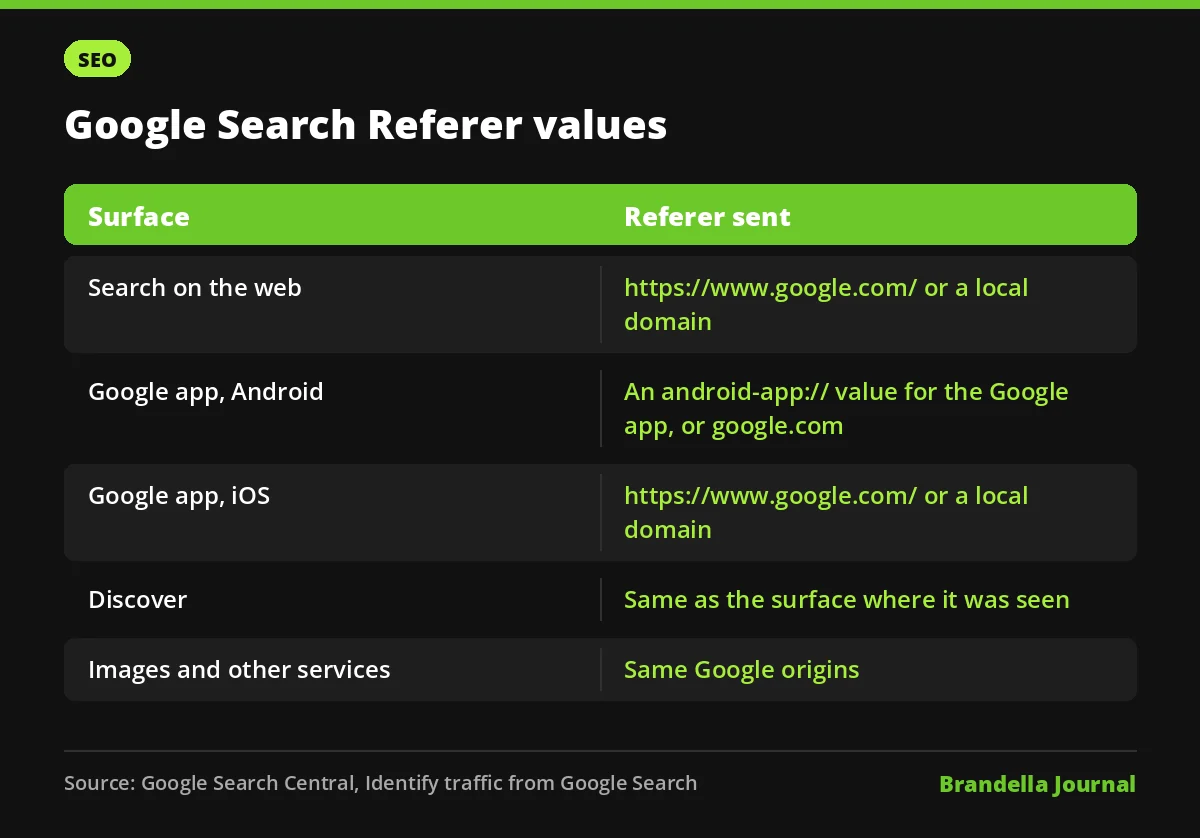
Google Search referer values by surface
The guide lists these values. It is the simplest reference to give your analyst or developer:
| Where the visit started | Referer value Google sends |
|---|---|
| Google Search on the web | https://www.google.com/ or a local domain such as https://www.google.co.uk/ |
| Google app on Android | android-app://com.google.android.googlequicksearchbox/https/www.google.com when the link opens in a browser tab, or https://www.google.com/ or a local domain |
| Google app on iOS | https://www.google.com/ or a local domain |
| Discover | The same value as the surface where the user saw it |
| Google Images and other Google services | The same origins, so the same values |
Two details stand out. First, the Android app value starts with android-app://, which some custom filters miss. Second, local domains like google.co.in or google.co.uk count too, so a filter that only matches www.google.com will undercount.
Why Google visits can show up as direct traffic
Google explains that browsers and operating systems may drop the header or block document.referrer for privacy or security. The common cases it names are private browsing, anti fingerprinting features, some new tab behaviour, moving from a native mobile widget into a browser, and privacy extensions or strict settings.
JavaScript based tracking can also miss visits because of privacy settings, consent management or ad blockers. So a slice of real Google traffic will always look like “direct” or will not appear at all. That is normal, not a sign of a broken setup.
The guide also notes that most analytics tools already classify these visits as organic Google traffic. If yours shows them as referral or direct, Google suggests checking custom channel rules, referral exclusions and filters.
Why your numbers will not match Search Console
Google lists four reasons for gaps between analytics and Search Console:
- Privacy and client settings. Extensions, ad blockers and consent choices can block scripts, strip parameters or suppress the Referer.
- Redirects. Client side redirects can replace the Referer with your own URL. Redirects that drop the query string lose parameters such as
gclid, and a stricterReferrer-Policyon a redirect can remove the Referer. - Different methods. Search Console counts a click when someone selects a result. Analytics counts a visit only after the page loads and the tracking code runs. Google’s help page on clicks and impressions adds that a click is counted when it sends the user to a page outside Google Search, Discover or News.
- Paid traffic. Search Console reports only organic clicks. Your analytics totals may include Google Ads, depending on setup.
For log analysis, Google adds one more tip: images, CSS and JavaScript files carry your own page URL as the Referer, so count only landing page requests.
How to identify Google Search traffic in your setup
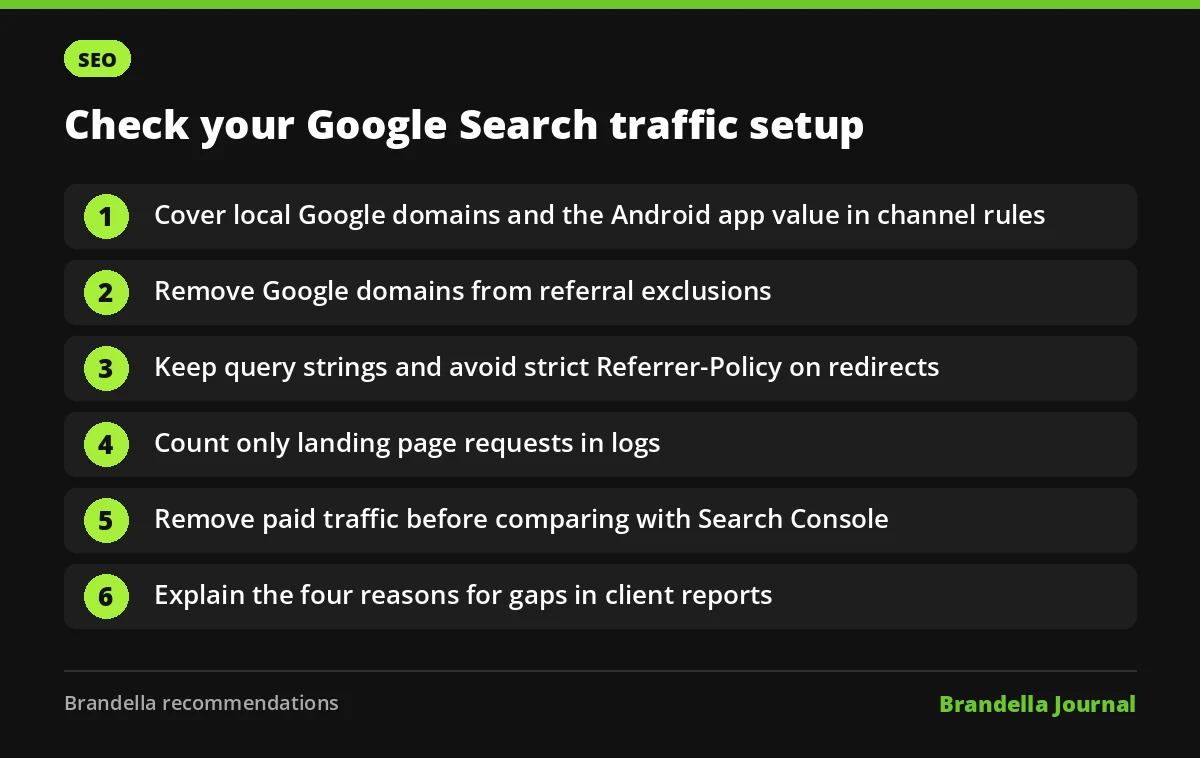
These steps are Brandella’s recommendations, built on Google’s guide:
- Review channel rules. In GA4, open your channel groups and make sure organic search rules cover Google local domains and the Android app value. Our guide on GA4 metrics explains where these reports live.
- Check referral exclusions. Make sure no Google domain was added to an exclusion list by mistake. That can push organic visits into direct.
- Test your redirects. Run your top landing URLs through a redirect checker. Keep server side redirects, keep query strings, and avoid a strict
Referrer-Policyon redirect hops. Our post on 301 vs 302 redirects covers the basics. - Filter logs properly. In log files, match the Referer against the values in the table and count only HTML page requests, not assets.
- Separate paid and organic. When you compare analytics with Search Console, remove Google Ads traffic first. UTM parameters and auto tagging make that easier.
- Explain the gap to clients. Use Google’s four reasons in reports so stakeholders stop expecting a perfect match.
What this means for SEO reporting
The practical takeaway is simple. Search Console stays the source of truth for organic clicks and queries, and analytics stays the source for what visitors did after they arrived. The new guide gives you an official page to cite when someone asks why the two numbers differ.
It also helps during migrations. When you move a site to a CDN or change redirect rules, a sudden rise in “direct” visits is often a referrer problem, not a traffic win. Check the Referer handling before you celebrate or panic.