GA4 Enhanced Measurement Explained: 7 Essential Events
GA4 enhanced measurement tracks scrolls, outbound clicks, downloads, searches, videos and forms automatically. See every setting with real screenshots.

In this article
- What Is GA4 Enhanced Measurement?
- How to Turn On GA4 Enhanced Measurement and Choose Events
- The 7 GA4 Enhanced Measurement Options and Their Events
- Which GA4 Enhanced Measurement Events You Can Trust
- Where to Find GA4 Enhanced Measurement Data in Reports
- GA4 Enhanced Measurement Settings Worth Changing
- A 10 Minute GA4 Enhanced Measurement Audit
- Frequently Asked Questions
- What We Learn Today
Hello and welcome back! Today we are opening up one of the most useful switches inside Google Analytics, the one most people never look at after setup day.
You installed GA4, saw page views roll in, and moved on. But somewhere in your data stream settings sits a panel that is quietly tracking scrolls, outbound clicks, downloads, searches, videos and forms for you. If you have ever wondered what GA4 enhanced measurement actually records, which events you can trust, and which ones need a backup plan, this guide walks you through every toggle with real screenshots.
We captured every screenshot below from a live GA4 property for a technical blog, so you see exactly what your own screens will look like. No mockups, no guesswork.
By the end, you will know how to switch each option on or off, where the data lands in your reports, and the handful of gotchas that silently distort your numbers.
What Is GA4 Enhanced Measurement?
GA4 enhanced measurement is a set of automatic events that Google Analytics collects from your website without any extra tagging. You switch options on in the interface, and the Google tag starts listening for those interactions.
Google's own help page on enhanced measurement events describes it as a way to measure content interactions by enabling options in the interface, with no code changes required.
It lives inside your web data stream. Open Admin, then Data streams under Data collection and modification, and you will see your website stream listed.
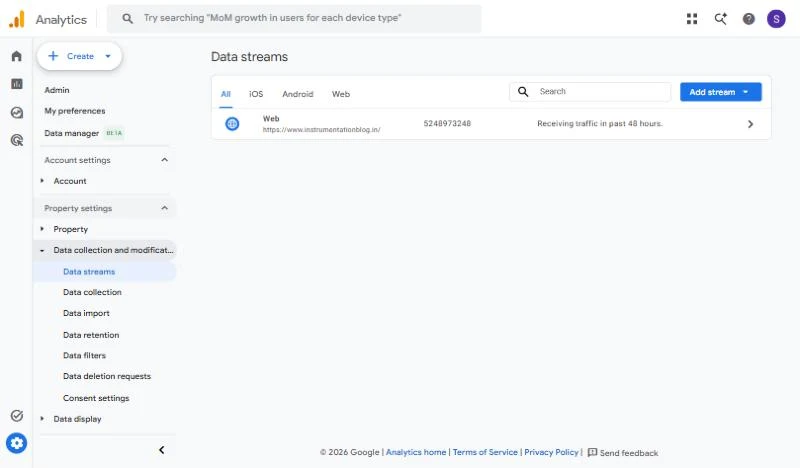
The Data streams page in GA4 Admin. Click your web stream to reach the GA4 enhanced measurement settings.
Click the stream and the Web stream details panel opens. The Enhanced measurement block sits right under Events, with a master switch and a row of icons showing what is currently being measured.
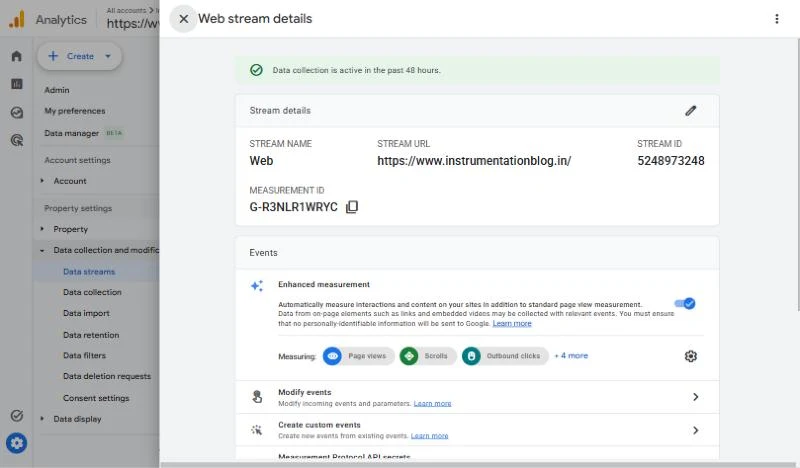
Web stream details with the master switch on. The gear icon on the right opens the full list of options.
Notice the Measurement ID in that panel too. It starts with G- and is the same ID your Google tag uses on every page.
How to Turn On GA4 Enhanced Measurement and Choose Events
New GA4 properties usually ship with the feature already on. Still, it is worth opening the settings once, because the defaults are not right for every website.
You need Editor access or higher at the property level to change these toggles, according to Google's setup instructions. Viewers can see the panel but cannot save changes.
- Go to Admin and open Data streams.
- Click your Web stream to open the stream details.
- Make sure the Enhanced measurement switch is on.
- Click the gear icon to open the individual options.
- Switch each option on or off, then click Save.
Here is what the full options panel looks like once you click the gear. Each option has its own switch and a short description of what it captures.
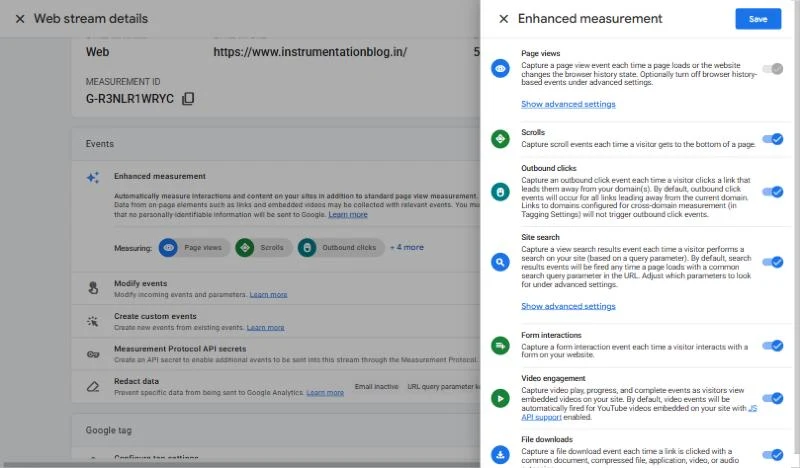
The individual options panel. Page views has a locked switch, while every other option can be turned off on its own.
Look closely at the Page views row. Its switch is greyed out, because page views are the base of every GA4 property. You can only fine tune them through the advanced settings link underneath.
Tip
If you just installed GA4 and want a tour of the core metrics these events feed into, read our beginner guide to GA4 metrics first.
The 7 GA4 Enhanced Measurement Options and Their Events
The settings panel shows seven options, but some of them send more than one event. Semrush's guide to GA4 events also counts seven switches you can turn on or off with one click.
The table below maps each option to the event names you will actually see in your reports, plus the moment each one fires.
| Option in panel | Event name | When it fires |
|---|---|---|
| Page views | page_view | Each page load, plus browser history changes if left on |
| Scrolls | scroll | Once per page, when a visitor reaches roughly 90% of the page |
| Outbound clicks | click | A click on a link that leads to another domain |
| Site search | view_search_results | A page loads with a search query parameter in the URL |
| Form interactions | form_start, form_submit | First interaction with a form in a session, and the submit |
| Video engagement | video_start, video_progress, video_complete | Embedded YouTube plays, progress points and completion |
| File downloads | file_download | A click on a link to a common document, archive, audio or video file |
Add them up and you get ten automatic event names from seven switches. That matches the breakdown in Measureschool's enhanced measurement walkthrough, which also lists the extra parameters each event carries.
Those parameters matter. An outbound click, for example, carries the destination as link_url, the domain as link_domain and an outbound flag set to true.
// Simplified view of one automatic outbound click
event_name:   click
link_url:     https://www.example.com/datasheet
link_domain:  example.com
link_text:    Read the datasheet
outbound: trueWhich GA4 Enhanced Measurement Events You Can Trust
Not every option works equally well on every site. Some are rock solid, others depend on how your site is built.
Use the picker below to check each option. It shows the events, the key parameters, how reliable it tends to be, and what to do when it falls short.
Enhanced Measurement Trust Checker
Pick an option to see what it records and whether you should rely on it.
The pattern is clear. Page views, outbound clicks and file downloads work well on most sites right away, while forms and videos need a closer look.
Analytics Mania's GA4 tutorial warns that the automatic form events can fire incorrectly or miss submissions, and suggests custom form tracking through GTM when forms matter to your business.
Video engagement only works for embedded YouTube players with the JavaScript API enabled. Measureschool points out that videos hosted on other platforms need a Tag Manager setup instead.
If your YouTube embeds do not show any video_start events, check the embed URL. It should include the enablejsapi=1 parameter.
<iframe width="560" height="315"
  src="https://www.youtube.com/embed/VIDEO_ID?enablejsapi=1"
title="Product demo" allowfullscreen></iframe>Where to Find GA4 Enhanced Measurement Data in Reports
All of these events land in the same place: Reports, then Engagement, then Events. The event names appear exactly as they are written, underscores and all.
Type a word into the table search box to narrow the list. Here we searched for "click" on the live property.
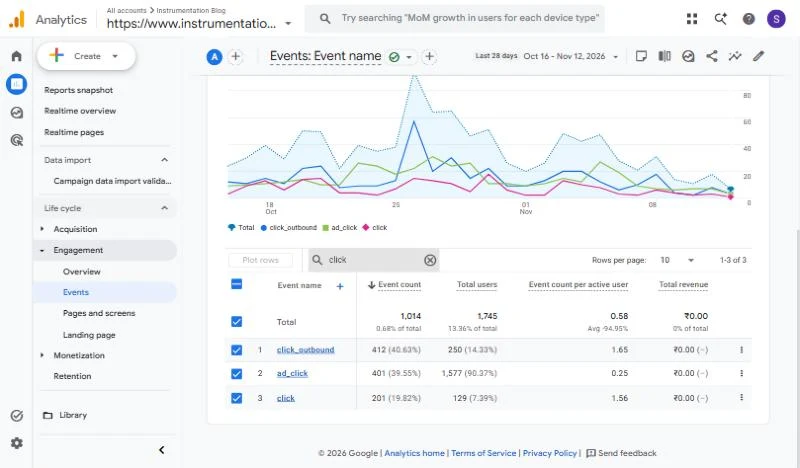
The Events report filtered to "click". The plain click row is the automatic outbound click event.
Notice there are three rows. Only the plain click row comes from the automatic feature. The other two are custom events this site added separately, which is a good reminder to know which events you created yourself.
For context, the same property logged 3,132 file_download events and 1,998 scroll events over the same 28 days, all without a single line of custom code.
Click any event name to open its detail report. You get a trend line, a country breakdown and a card showing parameter values from the last 30 minutes.
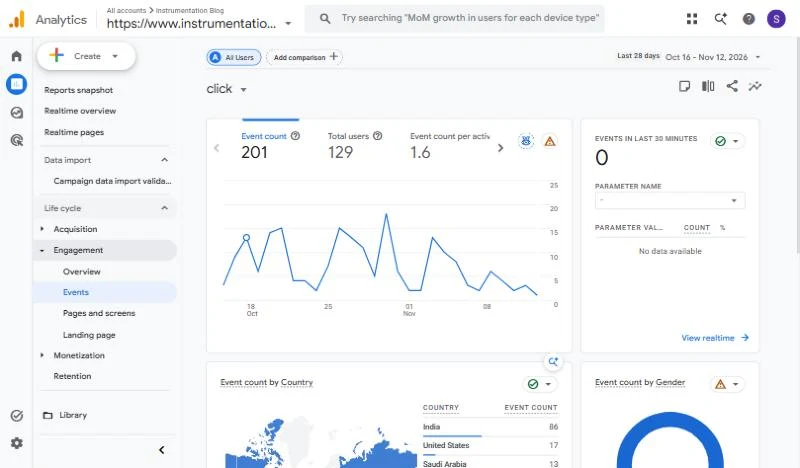
The detail report for the click event. The card on the right shows parameter values in near real time.
Tip
Parameters like link_url are collected but do not show as report dimensions until you register them. Our guide to custom dimensions in GA4 shows the exact steps.
GA4 Enhanced Measurement Settings Worth Changing
A few advanced settings fix most of the common data problems. They take minutes to adjust and pay off for years.
Tell GA4 which domains are yours
Outbound clicks only make sense if GA4 knows where your website ends. If you run a blog and a shop on different domains, both need to be listed, or every click between them counts as outbound.
That list lives in the Google tag settings under Configure your domains. The panel itself explains that it controls which links do not trigger outbound click events.
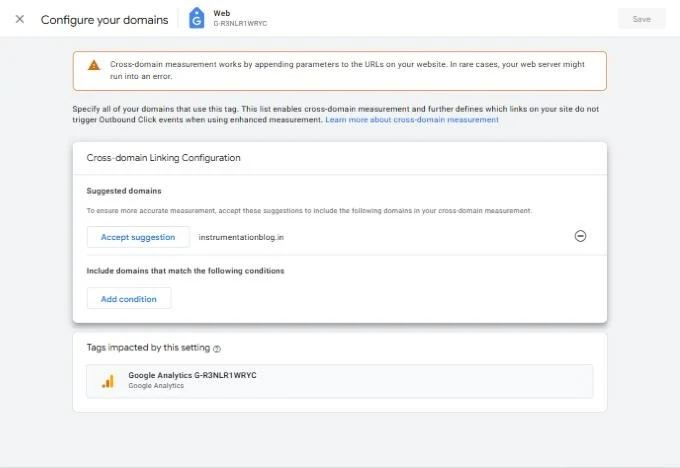
The Configure your domains screen. Any domain listed here stops counting as an outbound destination.
This same list powers cross domain measurement, so it is worth setting up carefully. Our cross domain tracking guide for GA4 covers the full setup.
Add your own site search parameter
Site search looks for a few common query parameters in the URL. Loves Data's enhanced measurement guide lists defaults like q, s, search and query.
If your search page uses something else, open Show advanced settings under Site search and add your parameter name. You can add several, separated by commas.
Turn off what you already track elsewhere
Running the same tracking in two places doubles your counts. Measureschool recommends disabling an option in GA4 whenever Tag Manager already tracks that same interaction.
This happens most with scroll depth and outbound clicks. If you built custom versions like the ones in our scroll depth tracking guide, switch the automatic one off.
A 10 Minute GA4 Enhanced Measurement Audit
Run through this list once on every property you manage. It catches the problems that quietly inflate or hide your numbers.
- Master switch is on. Open your web stream and confirm the main GA4 enhanced measurement toggle is active.
- Only useful options are enabled. Turn off forms or videos if your site does not use them, so the event list stays clean.
- No double tracking. Compare your Tag Manager tags against the panel and disable any overlap.
- All your domains are listed. Check Configure your domains so internal links never count as outbound.
- Search parameter matches your site. Run a test search and check the URL for the parameter name.
- YouTube embeds use the JS API. Look for
enablejsapi=1in every embed URL. - Key parameters are registered. Register
link_url,file_nameorsearch_termas custom dimensions if you report on them.
Once your GA4 enhanced measurement setup passes this audit, you have a reliable base layer of behaviour data. Anything beyond it, like button clicks or ecommerce, can then be added with Tag Manager.
Analytify's complete guide makes the same point: the feature captures key actions with no extra code, which frees your custom tracking budget for the interactions that are unique to your business.
Frequently Asked Questions
For most new web data streams, yes. It is still worth opening the gear icon once to check which individual options are switched on for your site.
No. GA4 enhanced measurement works with the standard Google tag alone. Tag Manager only becomes useful when you need tracking the automatic events do not cover.
The automatic form events rely on standard HTML form behaviour. Forms built with JavaScript, popups or AJAX often confuse them, so custom tracking is safer for important forms.
Not inside GA4. The automatic scroll event fires once at roughly 90%. For 25%, 50% and 75% points, use a Tag Manager scroll depth trigger and turn the automatic option off.
No. Switching an option off only stops new events from being collected. Events already recorded stay in your reports.
What We Learn Today
Seven Switches
The settings panel has seven options that send ten automatic events.
Web Stream Setting
Everything lives under Admin, Data streams, then your web stream.
Trust Levels Vary
Page views, outbound clicks and downloads are reliable. Forms and video need checks.
Your Domain List
Configure your domains decides which clicks count as outbound.
Avoid Double Counts
Disable any option you already track with Tag Manager.
Register Parameters
Values like the link URL need a custom dimension before they appear in reports.
Ready to Go Beyond the Defaults?
Now that your automatic events are set up properly, learn how to turn its hidden parameters into reports you can actually use.