Custom Dimensions in GA4: 6 Simple Steps to Create Them
Learn how to create custom dimensions in GA4 in 6 steps, choose the right scope, stay within quota limits and avoid the (not set) problem. Real screenshots.


In this article
- What Are Custom Dimensions in GA4?
- Event, User and Item Scope for GA4 Dimensions
- How to Create Custom Dimensions in GA4 in 6 Steps
- Check a Parameter Before You Register It
- Send the Parameter, Then Register It
- Common Mistakes With Custom Dimensions in GA4
- Where Your New GA4 Dimensions Show Up in Reports
- Frequently Asked Questions
- What We Learn Today
Hi everyone! Today's lesson fixes one of the most common GA4 frustrations: data you know you are sending, but can never find in a report.
You added a parameter to an event, checked DebugView, and there it was. Then you opened your reports a day later and found nothing. The data was never lost. GA4 simply needs you to register it first, and that is exactly what custom dimensions in GA4 are for. Let's walk through it with real screenshots from a live property.
Every screenshot in this guide comes from a working GA4 property for a technical blog. You will see the same screens and the same buttons when you follow along.
We will cover the three scopes, the exact steps to create a dimension, the limits you need to plan around, and the mistakes that leave you staring at "(not set)".
What Are Custom Dimensions in GA4?
Every GA4 event can carry extra details called parameters. A download event might carry a brochure name, and a signup event might carry a plan type.
GA4 collects those parameters, but most of them stay hidden from reports until you tell GA4 to treat them as a dimension. Custom dimensions in GA4 are that bridge between a raw parameter and a column you can actually report on.
Google's help article on custom dimensions and metrics explains that event scope dimensions report on custom event parameters, while user scope dimensions report on custom user properties.
Think of it this way. The parameter is the raw data you send. The custom dimension is the reporting label that makes it usable.
Custom dimensions versus custom metrics
The same Custom definitions page also creates custom metrics. The difference is simple: a dimension describes something, while a metric counts or measures it.
A brochure name is a dimension, because you group rows by it. A file size in kilobytes or a quoted order value is a metric, because you add it up or average it.
Most marketers start with custom dimensions in GA4 and only add metrics later, once they know which numbers they want to total in reports.
Event, User and Item Scope for GA4 Dimensions
Scope decides what a value describes. Pick the wrong one and your reports will slice data in ways that make no sense.
| Scope | Describes | Good example | Standard limit |
|---|---|---|---|
| Event | One single action | Brochure name on a download | 50 |
| User | The person, across sessions | Customer type, such as distributor | 25 |
| Item | A product inside an ecommerce event | Product colour or supplier | 10 |
Most dimensions belong in event scope. Relevant Audience's guide to scopes and quotas calls choosing the wrong scope the most common design mistake, and notes that scope cannot be changed after you save.
User scope values come from user properties. Once set, GA4 applies them to that visitor's later events too, which is why they suit stable traits rather than one off actions.
A GA4 360 property raises the limits to 125 event scope, 100 user scope and 25 item scope dimensions, according to Google's own limits table.
How to Create Custom Dimensions in GA4 in 6 Steps
The whole process takes about two minutes once the parameter is already being sent. Here is the path, step by step.
- Click Admin at the bottom left of GA4.
- Under Data display, open Custom definitions.
- Stay on the Custom dimensions tab and click Create custom dimension.
- Enter a clear Dimension name and an optional description.
- Choose the Scope, then pick or type the exact Event parameter name.
- Click Save, then wait for new data to arrive.
Here is the Custom definitions page on our live property. Notice it already holds six dimensions that a WordPress plugin created automatically.
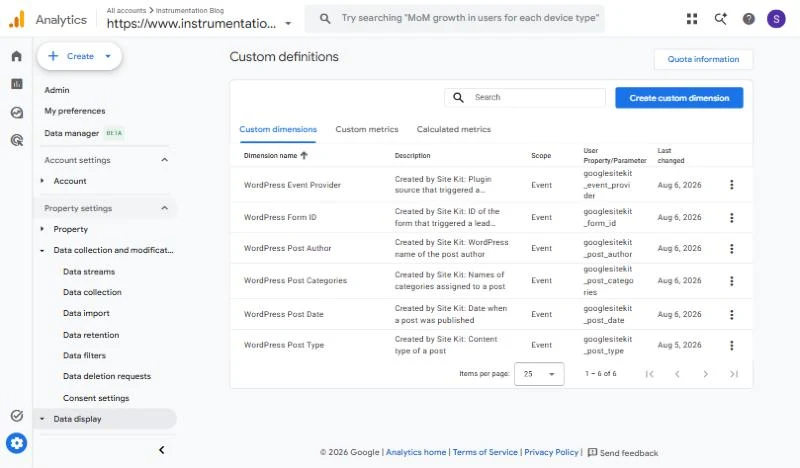
The Custom definitions page. The six rows here were added by Google Site Kit, a reminder to check what already exists before adding more.
Plugins like Site Kit quietly use part of your quota. Always review this list first, so you know how many slots you really have left.
Clicking Create custom dimension opens the form on the right. Here it is filled in for the link_url parameter that outbound clicks send.
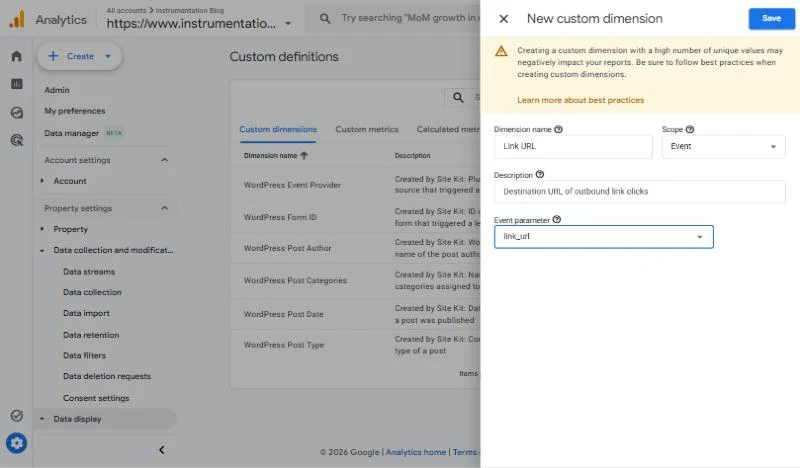
The new custom dimension form, filled in for link_url. The parameter dropdown suggests names GA4 has already received.
Before you click Save, though, there is one check that saves quota. We actually closed this form without saving, and the next section shows why.
Tip
The parameter name must match exactly, including letter case. Link_URL and link_url are two different parameters to GA4.
Check a Parameter Before You Register It
GA4 already ships with hundreds of predefined dimensions. Many common parameters, including link_url, are already available as built in dimensions in Explore, so registering them again just burns a slot.
You can see this inside an exploration. Searching for "link" in the dimension picker shows five predefined Link dimensions plus Outbound, with zero custom ones needed.
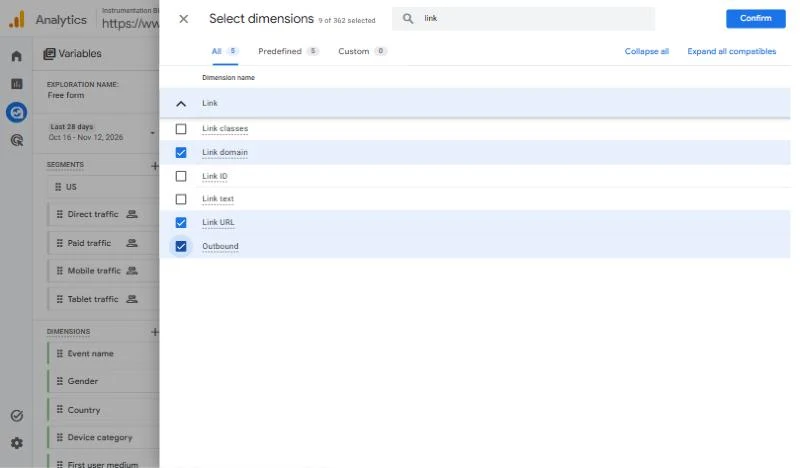
The Explore dimension picker. Link URL is predefined, so there is no need to register it as a custom dimension for explorations.
Use the planner below before you create anything. It checks the name, flags parameters GA4 already covers, warns about values that change too often, and shows how much quota you have left.
Custom Dimension Planner
Type a parameter name and see if it is worth registering.
Checking
The planner flags high cardinality for a reason. Stackmatix's GA4 custom dimensions guide explains how dimensions with too many unique values push rows into an "(other)" bucket in your reports.
Send the Parameter, Then Register It
A dimension is only a label. Something on your website still has to send the parameter with each event.
Here is a real example. A brochure download event sends two custom parameters, and a user property marks the visitor as a distributor.
// Event parameters, register as Event scope
gtag('event', 'download_brochure', {
  brochure_name: 'Flow Meters 2026',
  product_line: 'flow'
});

// User property, register as User scope
gtag('set', 'user_properties', {
  customer_type: 'distributor'
});
Pick a naming convention and stick to it
Lowercase names with underscores, like product_line, match the style Google uses for its own parameters. They are also easier to read in DebugView and harder to mistype.
Write the convention down for your team before anyone adds new tracking. A shared list of approved custom dimensions in GA4, with the parameter name, scope and owner for each one, prevents duplicates and keeps your quota under control.
You would then create two event scope dimensions, one for brochure_name and one for product_line, plus one user scope dimension for customer_type.
If you use Tag Manager instead of gtag, the logic is the same. Our guide to custom event tracking with Google Tag Manager shows how to add parameters inside a GA4 event tag.
Keep collection limits in mind too. Relevant Audience lists a 40 character cap on parameter names, a 100 character cap on most values, and a maximum of 25 parameters per event.
Tip
Confirm the parameter in DebugView before you register anything. If it is not arriving there, no custom dimension will fix it.
Common Mistakes With Custom Dimensions in GA4
Most problems with custom dimensions in GA4 come down to timing, naming or quota. Here are the ones we see most often.
Expecting old data to appear
Registration is not retroactive. Relevant Audience notes that Google says a new dimension becomes usable 24 to 48 hours after it is created, and that earlier events are not reprocessed.
Optimize Smart's guide to GA4 data delays adds that you may see "(not set)" for a new custom dimension during its first 24 hours. That is normal, not a broken setup.
Registering everything just in case
Fifty slots sound generous until a few plugins and old experiments take half of them. Register only what you will actually report on.
If you hit the limit, you can archive old dimensions. Measureschool's guide shows the archive prompt warning that it cannot be undone, and Relevant Audience adds that you must wait 48 hours before reusing freed slots.
Using values that are too unique
Session IDs, timestamps and full user agent strings make terrible dimensions. They create so many unique values that GA4 groups most of them into "(other)".
Mistyping the parameter name
A dimension pointing at a parameter that is never sent stays empty forever. Copy the name straight from DebugView rather than typing it from memory.
Sending personal information
Never pass email addresses, phone numbers or full names as parameters. Google Analytics policies do not allow personally identifiable information, and a single careless form field can put your whole property at risk.
Use an internal ID or a broad category instead. "Distributor" or "returning buyer" tells you everything you need for reporting, without exposing who the person actually is.
Where Your New GA4 Dimensions Show Up in Reports
Once data flows in, custom dimensions in GA4 appear in three main places. Each one suits a different kind of question.
- Standard reports. Add the dimension as a secondary dimension, or customize a report so it shows by default.
- Explorations. Import it into the Variables panel and use it as a row, column or filter. Our GA4 free form exploration guide shows this step by step.
- Audiences. Build an audience such as every visitor whose customer type is distributor.
- Looker Studio. Registered dimensions appear in the GA4 connector, ready for dashboards.
Analytics Mania's custom dimensions guide walks through each of these report locations in more detail if you want to go deeper.
If your parameters come from the automatic events covered in our GA4 enhanced measurement guide, check the predefined list first. Many of them are already there.
Frequently Asked Questions
Usually 24 to 48 hours after you create them and new events arrive. Data collected before you registered the dimension will not appear.
No. The scope and the event parameter are locked once saved. You need to archive the dimension and create a new one with the right settings.
A standard property allows 50 event scope, 25 user scope and 10 item scope dimensions, plus 50 custom metrics.
Either the data is still processing, the parameter name does not match exactly, or that particular event simply did not send the parameter.
Not for explorations, where Link URL is already a predefined dimension. Check the predefined list in your reports before using a custom slot.
What We Learn Today
Parameter vs Dimension
Parameters are raw data. Dimensions are the labels that make them reportable.
Three Scopes
Event for actions, User for people, Item for products in ecommerce.
Quota Limits
Standard properties get 50 event, 25 user and 10 item dimensions.
Check Predefined First
Many parameters, like Link URL, already exist as built in dimensions.
Not Retroactive
Only events after registration fill the dimension, after 24 to 48 hours.
Avoid Unique Values
IDs and timestamps flood reports with an (other) row.
Turn Your Parameters Into Insights
Your custom dimensions in GA4 are ready. Put them to work in a free form exploration and answer questions standard reports cannot.