
Now Reading: Accessible HTML Forms: A Practical Guide
-
01
Accessible HTML Forms: A Practical Guide

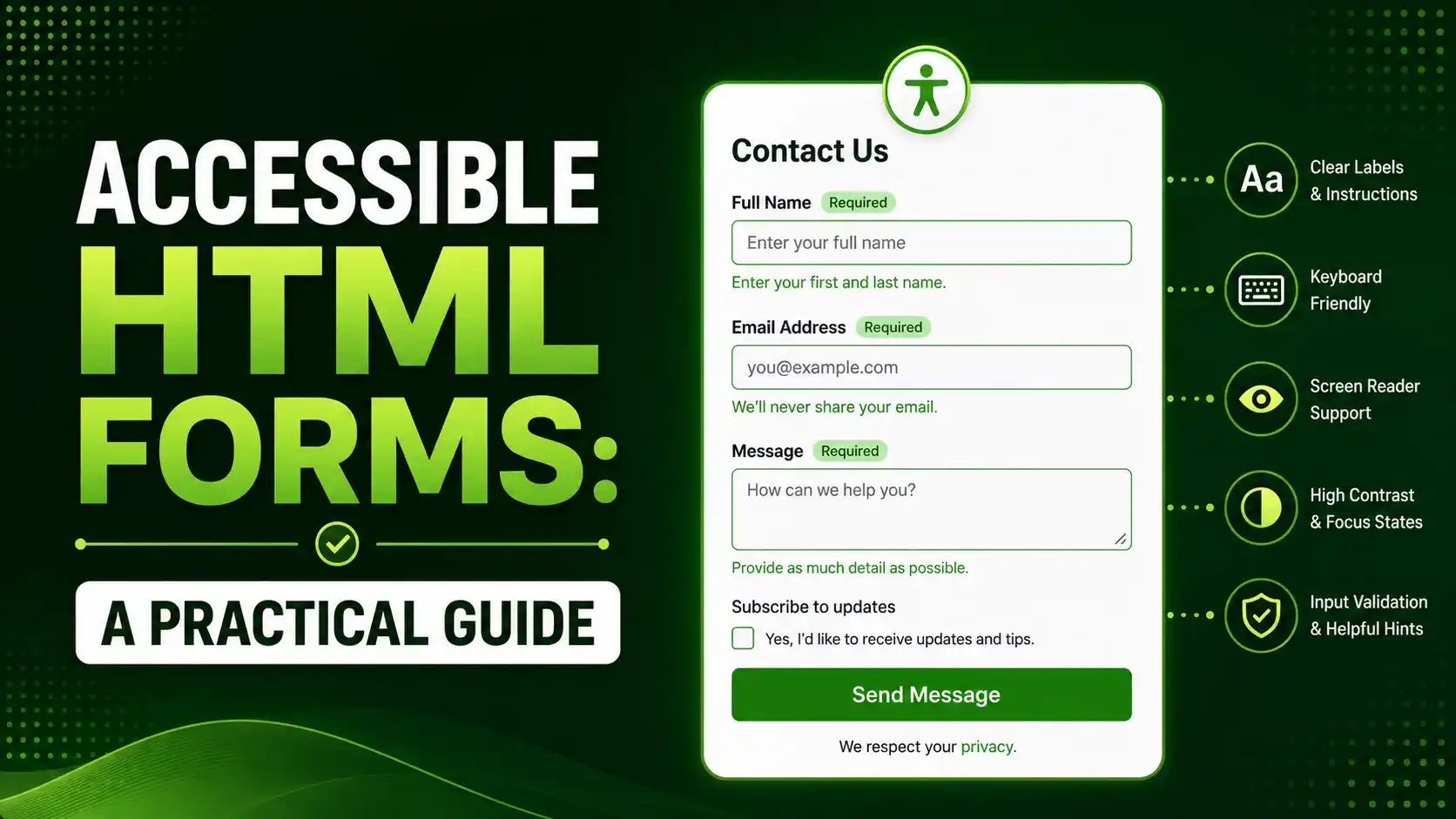
A practical guide to building accessible HTML forms, with real accessibility tree proof of what screen readers actually see, native attributes that do the heavy lifting, and the most common mistakes to avoid.
Before we dig in, a quick gut check. If you stripped every bit of CSS off your signup or checkout form right now, would someone using a screen reader still know what each box on the page is actually asking for? For a huge share of real forms out there, the honest answer is no.
You have probably built dozens of forms without ever running one through a screen reader, and that is completely normal, most developers haven't. Accessible HTML forms are not a separate, harder version of a normal form, they are what you get almost for free once a handful of native elements and attributes are used the way they were actually designed to be used.
What Are Accessible HTML Forms?
Accessible HTML forms give every field a programmatically determined name, a clear error path, and a keyboard only path from the first field to a successful submission, without requiring a mouse, a pointer, or perfect vision at any step.
The single biggest lever here is the humble <label> element, correctly connected to its field. Everything else, from ARIA attributes to focus styling, is secondary to getting this one relationship right.
This is not a purely ethical concern either, though that alone would be reason enough. A checkout or signup flow that abandons keyboard and screen reader users loses real completions, and accessible HTML forms tend to be cleaner, simpler markup in general, which usually helps ordinary usability and load performance too.
According to the 2026 WebAIM Million report, which scans the top one million home pages, 33.1% of form inputs found were not properly labeled, and missing labels remain one of the six most common accessibility errors on the web today.
Labels, Connected Properly
A <label> element only counts as connected when its for attribute matches the field's id, or when the field is physically nested inside the label. Placing a label visually next to a field, with no connection at all, does nothing for a screen reader.
<!-- visually fine, programmatically broken -->
<label>Email Address</label>
<input type="email" id="email">

<!-- correctly connected -->
<label for="email">Email Address</label>
<input type="email" id="email">
Per MDN's own accessible name glossary entry, an assistive technology computes a field's accessible name from a strict order of sources, and an unconnected label is not one of them at all, it is simply invisible to that computation.

Before touching a real browser, the same precedence order a browser actually uses to compute a field's accessible name was checked against five real cases.
The W3C's own WAI forms tutorial recommends a visible, connected label for every field as the default, reserving aria-label for the rarer case where no visible text makes sense on the page at all.
One edge case worth knowing: a field wrapped inside two nested labels, or two separate label elements both pointed at the same id, can confuse some assistive tools into announcing the label text twice. Building accessible HTML forms means checking for exactly one clear, connected label per field, never zero and never more than one.
Proof: What a Screen Reader Actually Gets From Your Markup
To make this concrete rather than theoretical, we built a real page with both an unconnected label and a properly connected one, then read Chromium's actual accessibility tree for each field directly.

Real Chromium, real accessibility tree. The unconnected label produced an empty accessible name every time, while the properly connected label produced the exact label text, with zero ARIA written by hand.
The unconnected field's accessible name came back completely empty, confirming that a screen reader user landing on it would hear nothing more than "edit text," with no indication of what the field is even for. The connected field announced its full label text every time.
The same real page also confirms something just as useful: a plain native required attribute shows up directly in the accessibility tree's required flag, with no aria-required needed at all.
Neither of these results depended on any hand written accessibility code whatsoever. The connected label and the native required attribute did all the work by themselves, which is really the entire argument for building accessible HTML forms this way from the start rather than retrofitting ARIA onto broken markup after the fact. Retrofitting is possible, but it is slower, easier to get subtly wrong, and rarely tested as thoroughly as markup that was correct from the first draft.
Grouping Related Fields and Writing Real Errors
A set of related choices, like a shipping method or a set of checkboxes, benefits from being wrapped in a real <fieldset> with a <legend>, which gives a screen reader a group level heading the individual field labels alone cannot provide.
<fieldset>
  <legend>Shipping Method</legend>
  <label><input type="radio" name="ship"> Standard</label>
  <label><input type="radio" name="ship"> Express</label>
</fieldset>
Error messages need the same kind of programmatic connection labels do. An error tied to its field with aria-describedby gets read out alongside the field itself, while an error that only appears as red text somewhere else on the page is easy to miss entirely without sight.
- Connect every error to its field. Use
aria-describedbypointing at the error message's id. - Announce the error, don't just color it. Red text alone communicates nothing to a screen reader.
- Move focus to the first invalid field on submit. Do not leave a keyboard user stranded on the button.
- Keep error text specific. "Invalid" tells a user nothing useful, "Enter a valid email address" does.
Smashing Magazine's own guide to accessible form validation covers this pattern in far more depth, including how to handle validation that runs as a user types rather than only on submit.
Keyboard Access and Visible Focus
Every one of these accessible HTML forms techniques falls apart if a keyboard user cannot actually reach and see where focus currently sits. Real form fields, buttons, and native <select> elements all get keyboard focus automatically, with zero JavaScript required.
Never remove the default focus outline with outline: none unless you replace it with an equally visible custom style. A focus indicator that disappears is functionally the same as no keyboard support at all.
The modern :focus-visible pseudo class, per caniuse.com's own support data, is supported across every current major browser, and lets a custom focus style apply only for keyboard navigation, leaving a mouse click's focus ring untouched if that is the design goal.
Tab order matters just as much as focus visibility. As long as fields appear in a logical reading order in the actual markup, the browser's default tab order follows it automatically, which is one more reason accessible HTML forms rarely need a manually managed tabindex at all.
Native Attributes That Do the Heavy Lifting
A surprising amount of what people reach for ARIA to solve is already handled by a native HTML attribute, and per the HTML living standard's own input element definition, each of these was built into the platform specifically to be understood by assistive technology automatically.
| Native Attribute | What It Announces |
|---|---|
required | Field is mandatory, no aria-required needed |
type="email" | Correct keyboard on mobile, plus built in format validation |
autocomplete | Lets assistive tools and browsers fill known values correctly |
disabled | Field is unavailable and correctly skipped in tab order |
Google's own web.dev forms accessibility course makes the same point directly: reach for a native attribute first, and only add ARIA for the genuine gaps HTML itself does not cover.
We covered this same "native first" principle from a different angle in our semantic HTML guide, including a real proof that proper structure alone produces correct landmark roles with zero hand written ARIA. The same native first instinct is what separates accessible HTML forms that hold up in a real audit from ones that only look right to a sighted reviewer clicking through quickly.
Common Mistakes That Break Accessible HTML Forms
The most common mistake is exactly the one our real proof demonstrated: a visually placed label with no for attribute connecting it to its field, leaving the field with no accessible name at all.
The second is using placeholder text as a replacement for a real label. Placeholder text disappears the moment a user starts typing, and per Deque University's own axe rule for form labels, a placeholder alone still fails automated accessibility checks even when it happens to be read aloud.
The third is a heading or a card title that looks like it labels a group of fields but is never actually connected via a <fieldset> and <legend>, leaving that visual grouping invisible to anyone not looking at the page.
The fourth is building custom form controls from styled <div> elements instead of real <input>, <select>, or <button> elements, which quietly strips out keyboard support, focus handling, and form submission behavior the browser would otherwise provide for free.
A fifth, subtler mistake is skipping real end user testing entirely. Automated checks catch a missing label reliably, but they cannot tell you whether the actual tab order makes sense, whether an error message reads clearly out loud, or whether a genuinely confusing field survives contact with a real screen reader user. A short manual pass with a keyboard alone, tabbing through the whole flow with the mouse physically unplugged, catches problems no automated scanner will ever flag.
None of this requires a framework or a plugin. Genuinely accessible HTML forms come from the same small set of native elements and attributes browsers have shipped for decades, used the way they were designed to be used.
No. It disappears once typing starts and is not a reliable accessible name source. Always pair a field with a real, connected <label> element.
Rarely for the basics. Native elements and attributes like label, fieldset, and required already cover most of what a form needs.
Click every visible label and confirm focus jumps to its field. If it doesn't, the label almost certainly is not connected via a matching for and id.
Yes. Connect an error to its field with aria-describedby so a screen reader announces it alongside the field, not only as separate colored text.
No, not without replacing it with an equally visible custom style. Removing it entirely leaves keyboard users with no way to see where they are.
Learn Today
Accessible HTML Forms
Forms where every field has a programmatic name, a reachable keyboard path, and connected error messages.
Accessible Name
The text a browser exposes to assistive technology for a given element, computed from a strict source order.
Fieldset and Legend
Native elements that group related fields and give that group a real, announced heading.
ARIA Describedby
An ARIA attribute that connects an element, like an error message, to the field it describes.
Focus Visible
A CSS pseudo class that applies a focus style specifically for keyboard navigation.
Accessibility Tree
The browser's internal representation of a page exposed to screen readers and other assistive tools.
Ready to Test Your Own Forms?
Click through your form's labels and confirm focus lands on the right field every single time.