Google Tag Upgraded to Tag Manager Container: What to Check
Google tag upgraded to a Tag Manager container? Google is converting standalone tags into GTM containers. What changes, what stays the same and what to check.

In this article
Is your Google tag upgraded to a Tag Manager container? If you open your Google tag settings and see “Your Google tag has been upgraded to a Tag Manager container”, you are not alone. Google is converting standalone Google tags, the gtag.js setups many sites use for GA4 and Google Ads, into full Google Tag Manager containers with their own GTM ID.
The latest batch was spotted on November 16, 2026 by analytics consultant Julius Fedorovicius in a LinkedIn post, and reported the same day by PPC Land. The plan itself is documented in Google’s help page Updates to Google tag and Google Tag Manager.
This affects anyone who installed GA4 or Google Ads tracking with the Google tag rather than GTM. Your tracking should keep working, but the place where you manage it has changed, and a few settings deserve a check.

What the Google tag upgrade changes
According to the PPC Land report, the “Configure tag settings” link under a GA4 web data stream now opens a Tag Manager container that Google created for that stream. The container has a GTM ID and shows the upgrade banner.
Google’s help page describes what the upgrade adds and what it keeps:
| Area | Standalone Google tag | Upgraded container |
|---|---|---|
| Where you manage it | Google tag settings in GA4 or Google Ads | A Tag Manager container with a GTM ID |
| Tools available | Basic tag settings | Interface tagging, debugging and version control |
| Behaviour on your site | Current setup | Google says it “will not change the in-page behavior” |
| Destinations | Shared Google tag | Each Google destination gets its own tag |
| Snippet | Includes gtag config | Identical, but without the gtag config command |
Google recommends using the gtm init trigger to set up initialisation. The help page says this trigger can make a tag wait for the config command, which helps keep older setups working.
What stays the same, and what Google has not said
The key line from Google is that the upgrade “will not change the in-page behavior of the Google tags.” Google also says each destination keeps its own tag, “preserving your existing setup and triggers for automation events.”
Container optimisation is a separate, optional step. Google’s page says no changes will be made automatically and you can choose whether to adopt the new configuration. Users with edit, approve or publish permissions can start it from a banner and preview changes first.
What is missing matters too. PPC Land notes that Google has published no schedule and no opt out for the upgrade itself. It is also unclear which account holds the auto-created container and who gets access by default.
Google tag upgraded: what to check now
These are Brandella’s recommendations, not official Google steps.

- Find the new container. In GA4, go to Admin, Data streams, your web stream, then Configure tag settings. Note the GTM ID it opens.
- Check user access. Open the container’s user management and confirm the right people can view and publish. Google says account links made during optimisation get “Read” access by default.
- Do not optimise blindly. If you see the optimisation banner, test it in a separate workspace and use GTM Preview mode before you publish.
- Confirm data still flows. Compare GA4 real time reports and key events for a few days after the change. Our guide to common GTM mistakes lists what usually breaks.
- Review custom gtag code. If your site calls
gtag('config')with custom parameters, check how the newgtm inittrigger handles it. - Avoid double tagging. If your site already runs a separate GTM container, make sure the same GA4 events are not now sent twice.
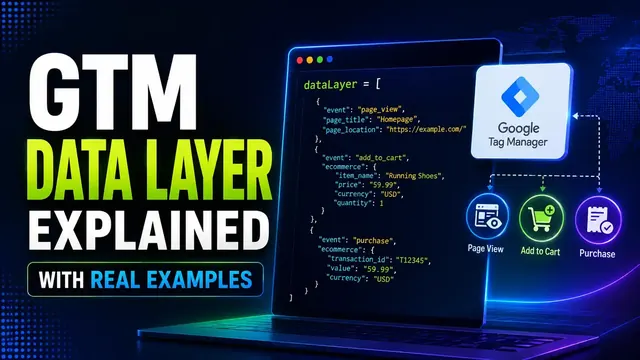
If you are new to containers, start with our Google Tag Manager guide for beginners and our walkthrough of the GTM data layer.
The wider Google tag and GTM timeline
This upgrade is part of a longer plan. PPC Land’s timeline lists Google publishing the plan on May 20, 2026, container ID rules taking effect on July 9, 2026, the help page being re-dated on August 20, 2026 and an “Optimizing Google Tag Manager containers” release note on October 12, 2026.
Under the July rules reported by PPC Land, containers loaded with a GTM ID are not restricted, while containers loaded with a G or AW ID can run only Google tags and variables. That is one reason to know exactly which ID your site uses.
Who should care most
Small businesses that set up GA4 with the Google tag and never touched GTM are most likely to be surprised. Agencies managing many client properties should also check, because new containers could appear in accounts they do not control.
Developers who rely on custom gtag.js code should test carefully. Google’s own help page focuses on the gtm init trigger, so any custom initialisation logic is the area most worth reviewing.
FAQ about the Google tag upgrade
Will my GA4 tracking stop working?
Google says the upgrade will not change the in-page behaviour of Google tags. Still, check real time reports and key events for a few days to be safe.
Can I opt out of the upgrade?
Google’s help page does not describe an opt out for the upgrade itself. Only the container optimisation step is optional.
Do I need to change the code on my site?
Google has not asked sites to change their code. It says new deployment snippets will be identical except that they no longer include the gtag config command.
What is the gtm init trigger?
It is the trigger Google recommends for setting up initialisation in the container. Google says it can make a tag wait for the config command to keep older setups working.