Google Maps Message Button Moves Next to Call for Businesses
The Google Maps message button now sits next to Call on Business Profiles in the Android and iOS apps. How it works and how to set up chat today.

In this article
Google has made the Google Maps message button much easier to find. In its November Small Business Bulletin, posted in the Google Business Profile Community, Google said customers on Android and iOS now see a prominent Message button right next to Call on a business listing in the Maps app. The details were reported by Search Engine Roundtable on November 6, 2026.
This matters for every local business with a Business Profile, from plumbers and clinics to restaurants and shops. Until now, Google said, starting a chat on Maps meant scrolling deep into the profile. Now it sits beside the most used action on the listing.
If your profile does not have a chat channel linked, the new placement does nothing for you. Here is what changed and how to get ready before the holiday rush.
What changed with the Google Maps message button
According to the bulletin as reported by Search Engine Roundtable, the Message button appears in three places in the Maps app: next to Call, in the expanded header and in the bottom action bar. Google framed it as bringing the same messaging experience customers already get in Search over to Maps.
| Before | Now | |
|---|---|---|
| Where chat sat on Maps | Deep in the profile, after scrolling | Next to Call, in the expanded header and in the bottom action bar |
| Platforms | Not specified | Android and iOS Maps apps |
| Where messages go | Your linked channel | Your linked channel, such as WhatsApp or SMS |
| Setup needed | Chat linked in Business Profile | No change |
Google listed three benefits: chats land in channels you already use, such as WhatsApp and text, customers have a fallback when you cannot pick up the phone, and people can reach you the same way whether they find you in Search or Maps.
Who this affects
Any business whose customers use Maps to decide where to go is affected. Service area businesses gain the most, because customers often want a quick quote or availability check without a call.
It also raises the stakes for response habits. A button next to Call will get tapped, and a message that sits unanswered is a lost lead in a very public place. If you are working on Maps visibility, our guide on how to rank higher on Google Maps covers the ranking side, while this change is about what happens after someone finds you.
How to link chat to your Business Profile
Google’s help page on how to chat with customers from your Business Profile lists the setup steps:
- Go to your Business Profile at business.google.com.
- Select Edit profile, then Contact.
- Next to Chat, select Edit.
- Open the Chat dropdown and choose WhatsApp or Text message.
- Enter a WhatsApp click to chat URL, or a phone number that can receive texts.
- Select Save.
A few rules from the same page are worth knowing. The profile must be claimed and verified, and chat options are only available in select regions, so you may not see them yet. If you add both WhatsApp and text, customers only see the text option. Several profiles can share one WhatsApp link, and chat performance shows up in your Business Profile metrics.
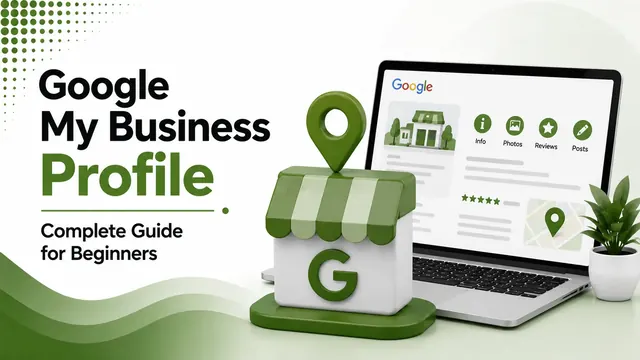
If you are new to profile management, start with our Google Business Profile guide for beginners.
What local businesses should do now
The steps below are our recommendation, not official Google guidance.
- Check that chat is linked. Open the Contact section of your profile and confirm the right WhatsApp link or text number is saved. Then open your listing in the Maps app on a phone and look for the button.
- Choose one channel on purpose. Because text wins when both are set, pick the channel your team actually monitors. If WhatsApp is where your staff live, link only WhatsApp.
- Set a response routine. Decide who answers, during which hours, and how fast. Write two or three saved replies for common questions such as prices, opening hours and booking.
- Use a number that can be shared. Avoid a personal phone. Use a business line or a WhatsApp Business account that more than one person can manage.
- Keep details consistent. Make sure the phone number and name match your website and directories. Our post on NAP consistency explains why this matters for local rankings.
- Track chats as leads. Review chat numbers in Business Profile metrics each month next to calls and direction requests, and ask new customers how they found you.
- Prepare for scams. Be careful with messages asking for payments, codes or account access, and never share login details over chat.
Why this matters for local SEO
Google does not say messaging affects rankings, and we have no evidence that it does. The value is conversion: the same Maps visibility can now turn into more conversations with less friction.
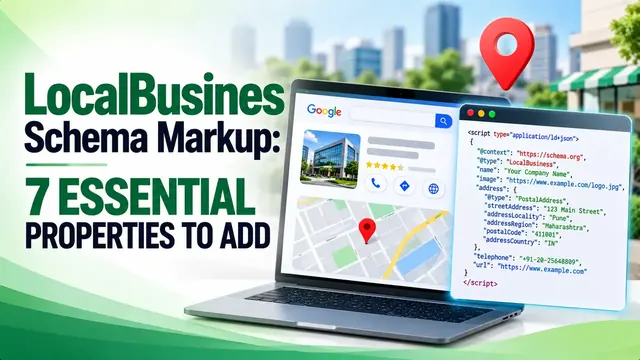
For many small businesses, a message is easier than a call, especially for quick questions. Putting the button next to Call tells you Google expects more people to use it, so make sure someone is ready to reply. Pair it with solid profile basics and structured data such as LocalBusiness schema on your site for a complete local setup.