
- Home
- SEODiscover the latest updates from across the United States, including politics, culture, economy, and trending stories. Stay informed on the key events shaping the nation and the topics everyone’s talking about.
- Technical SEOLearn technical SEO concepts including crawling, indexing, XML sitemaps, robots.txt, canonical tags, site architecture, and website performance.
- Local SEOOptimize your business for local seo with Google Business Profile, local citations, reviews, maps, and location-based SEO.
- Mobile SEOImprove your website’s mobile seo performance with responsive design, mobile-first indexing, usability, and page speed optimization.
- On-Page SEOExplore on-page seo optimization techniques such as title tags, meta descriptions, headings, URLs, internal linking, and content optimization.
- Off-Page SEODiscover off-page SEO strategies such as backlinks, digital PR, brand mentions, outreach, and authority building.
- SEO ToolsExplore the best SEO tools for keyword research, technical audits, backlink analysis, rank tracking, and website optimization.
- Core Web VitalsLearn how to improve Core Web Vitals including LCP, INP, CLS, page speed, and overall user experience for better rankings.
- Keyword ResearchLearn how to find profitable keywords, analyze search intent, evaluate competition, and build effective keyword strategies.
- Link BuildingMaster ethical link building techniques, backlink analysis, outreach methods, guest posting, and authority growth strategies.
- Google Search ConsoleLearn how to use Google Search Console to monitor indexing, fix errors, analyze search performance, and improve SEO.
- SEO BasicsLearn the fundamentals of search engine optimization (SEO Basics), including how search engines work, SEO terminology, and beginner-friendly best practices.
- Paid Media
- Display AdvertisingLearn display advertising strategies, banner ads, audience targeting, remarketing, Google Display campaigns, and optimization techniques.
- Google AdsLearn Google Ads strategies, campaign setup, bidding, keywords, Performance Max, Search Ads, and optimization techniques.
- LinkedIn AdsLearn LinkedIn Ads strategies for B2B marketing, lead generation, audience targeting, campaign optimization, and paid social advertising.
- Meta AdsLearn Meta Ads strategies for Facebook and Instagram, including campaign setup, targeting, retargeting, and performance optimization.
- Paid Media AnalyticsLearn paid media analytics, including CPC, CTR, CPA, ROAS, conversion tracking, attribution, reporting, and campaign performance analysis.
- PPC StrategyLearn effective PPC strategies, campaign planning, bidding, keyword targeting, landing pages, conversion optimization, and more.
- ContentTransform your living spaces with inspiration, tips, and trends in interior design. From minimalist decor to bold statements, find ideas for every style and budget.
- Social
- Digital MarketingExplore stories and advice on living your best life. From personal growth to entertainment, dive into the latest in lifestyle trends and inspiration.
- Artificial IntelligenceStay informed about health and wellness with expert advice, fitness tips, and the latest medical breakthroughs. Your guide to a healthier and happier life.
- DevelopmentYou will find development related educational articles
- GTMLearn Google Tag Manager (GTM) with practical guides for tags, triggers, variables, tracking, conversions, and website analytics implementation.
- HTMLLearn HTML with simple tutorials, examples, tags, elements, attributes, and best practices for building modern web pages.
- HTML CSSLearn HTML CSS together with practical tutorials, examples, layouts, styling techniques, responsive design, and modern web development practices.
- HTML JSLearn HTML JS – JavaScript with practical tutorials and examples for adding interactivity, dynamic content, events, and functionality to web pages.
- JavaScriptExplore JavaScript tutorials, examples, concepts, and practical techniques for creating interactive and dynamic websites and web applications.
- PHPLearn PHP programming with practical tutorials, examples, functions, syntax, and web development techniques for beginners and developers.
- PythonLearn Python programming with practical tutorials, examples, syntax, functions, automation techniques, and useful programming concepts.
- Home
- SEODiscover the latest updates from across the United States, including politics, culture, economy, and trending stories. Stay informed on the key events shaping the nation and the topics everyone’s talking about.
- Technical SEOLearn technical SEO concepts including crawling, indexing, XML sitemaps, robots.txt, canonical tags, site architecture, and website performance.
- Local SEOOptimize your business for local seo with Google Business Profile, local citations, reviews, maps, and location-based SEO.
- Mobile SEOImprove your website’s mobile seo performance with responsive design, mobile-first indexing, usability, and page speed optimization.
- On-Page SEOExplore on-page seo optimization techniques such as title tags, meta descriptions, headings, URLs, internal linking, and content optimization.
- Off-Page SEODiscover off-page SEO strategies such as backlinks, digital PR, brand mentions, outreach, and authority building.
- SEO ToolsExplore the best SEO tools for keyword research, technical audits, backlink analysis, rank tracking, and website optimization.
- Core Web VitalsLearn how to improve Core Web Vitals including LCP, INP, CLS, page speed, and overall user experience for better rankings.
- Keyword ResearchLearn how to find profitable keywords, analyze search intent, evaluate competition, and build effective keyword strategies.
- Link BuildingMaster ethical link building techniques, backlink analysis, outreach methods, guest posting, and authority growth strategies.
- Google Search ConsoleLearn how to use Google Search Console to monitor indexing, fix errors, analyze search performance, and improve SEO.
- SEO BasicsLearn the fundamentals of search engine optimization (SEO Basics), including how search engines work, SEO terminology, and beginner-friendly best practices.
- Paid Media
- Display AdvertisingLearn display advertising strategies, banner ads, audience targeting, remarketing, Google Display campaigns, and optimization techniques.
- Google AdsLearn Google Ads strategies, campaign setup, bidding, keywords, Performance Max, Search Ads, and optimization techniques.
- LinkedIn AdsLearn LinkedIn Ads strategies for B2B marketing, lead generation, audience targeting, campaign optimization, and paid social advertising.
- Meta AdsLearn Meta Ads strategies for Facebook and Instagram, including campaign setup, targeting, retargeting, and performance optimization.
- Paid Media AnalyticsLearn paid media analytics, including CPC, CTR, CPA, ROAS, conversion tracking, attribution, reporting, and campaign performance analysis.
- PPC StrategyLearn effective PPC strategies, campaign planning, bidding, keyword targeting, landing pages, conversion optimization, and more.
- ContentTransform your living spaces with inspiration, tips, and trends in interior design. From minimalist decor to bold statements, find ideas for every style and budget.
- Social
- Digital MarketingExplore stories and advice on living your best life. From personal growth to entertainment, dive into the latest in lifestyle trends and inspiration.
- Artificial IntelligenceStay informed about health and wellness with expert advice, fitness tips, and the latest medical breakthroughs. Your guide to a healthier and happier life.
- DevelopmentYou will find development related educational articles
- GTMLearn Google Tag Manager (GTM) with practical guides for tags, triggers, variables, tracking, conversions, and website analytics implementation.
- HTMLLearn HTML with simple tutorials, examples, tags, elements, attributes, and best practices for building modern web pages.
- HTML CSSLearn HTML CSS together with practical tutorials, examples, layouts, styling techniques, responsive design, and modern web development practices.
- HTML JSLearn HTML JS – JavaScript with practical tutorials and examples for adding interactivity, dynamic content, events, and functionality to web pages.
- JavaScriptExplore JavaScript tutorials, examples, concepts, and practical techniques for creating interactive and dynamic websites and web applications.
- PHPLearn PHP programming with practical tutorials, examples, functions, syntax, and web development techniques for beginners and developers.
- PythonLearn Python programming with practical tutorials, examples, syntax, functions, automation techniques, and useful programming concepts.
Now Reading: How to Use the URL Inspection Tool to Diagnose Indexing Problems
-
01
How to Use the URL Inspection Tool to Diagnose Indexing Problems
- Home//
- SEO//Discover the latest updates from across the United States, including politics, culture, economy, and trending stories. Stay informed on the key events shaping the nation and the topics everyone’s talking about.
- Technical SEO//Learn technical SEO concepts including crawling, indexing, XML sitemaps, robots.txt, canonical tags, site architecture, and website performance.
- Local SEO//Optimize your business for local seo with Google Business Profile, local citations, reviews, maps, and location-based SEO.
- Mobile SEO//Improve your website’s mobile seo performance with responsive design, mobile-first indexing, usability, and page speed optimization.
- On-Page SEO//Explore on-page seo optimization techniques such as title tags, meta descriptions, headings, URLs, internal linking, and content optimization.
- Off-Page SEO//Discover off-page SEO strategies such as backlinks, digital PR, brand mentions, outreach, and authority building.
- SEO Tools//Explore the best SEO tools for keyword research, technical audits, backlink analysis, rank tracking, and website optimization.
- Core Web Vitals//Learn how to improve Core Web Vitals including LCP, INP, CLS, page speed, and overall user experience for better rankings.
- Keyword Research//Learn how to find profitable keywords, analyze search intent, evaluate competition, and build effective keyword strategies.
- Link Building//Master ethical link building techniques, backlink analysis, outreach methods, guest posting, and authority growth strategies.
- Google Search Console//Learn how to use Google Search Console to monitor indexing, fix errors, analyze search performance, and improve SEO.
- SEO Basics//Learn the fundamentals of search engine optimization (SEO Basics), including how search engines work, SEO terminology, and beginner-friendly best practices.
- Paid Media//
- Display Advertising//Learn display advertising strategies, banner ads, audience targeting, remarketing, Google Display campaigns, and optimization techniques.
- Google Ads//Learn Google Ads strategies, campaign setup, bidding, keywords, Performance Max, Search Ads, and optimization techniques.
- LinkedIn Ads//Learn LinkedIn Ads strategies for B2B marketing, lead generation, audience targeting, campaign optimization, and paid social advertising.
- Meta Ads//Learn Meta Ads strategies for Facebook and Instagram, including campaign setup, targeting, retargeting, and performance optimization.
- Paid Media Analytics//Learn paid media analytics, including CPC, CTR, CPA, ROAS, conversion tracking, attribution, reporting, and campaign performance analysis.
- PPC Strategy//Learn effective PPC strategies, campaign planning, bidding, keyword targeting, landing pages, conversion optimization, and more.
- Content//Transform your living spaces with inspiration, tips, and trends in interior design. From minimalist decor to bold statements, find ideas for every style and budget.
- Social//
- Digital Marketing//Explore stories and advice on living your best life. From personal growth to entertainment, dive into the latest in lifestyle trends and inspiration.
- Artificial Intelligence//Stay informed about health and wellness with expert advice, fitness tips, and the latest medical breakthroughs. Your guide to a healthier and happier life.
- Development//You will find development related educational articles
- GTM//Learn Google Tag Manager (GTM) with practical guides for tags, triggers, variables, tracking, conversions, and website analytics implementation.
- HTML//Learn HTML with simple tutorials, examples, tags, elements, attributes, and best practices for building modern web pages.
- HTML CSS//Learn HTML CSS together with practical tutorials, examples, layouts, styling techniques, responsive design, and modern web development practices.
- HTML JS//Learn HTML JS – JavaScript with practical tutorials and examples for adding interactivity, dynamic content, events, and functionality to web pages.
- JavaScript//Explore JavaScript tutorials, examples, concepts, and practical techniques for creating interactive and dynamic websites and web applications.
- PHP//Learn PHP programming with practical tutorials, examples, functions, syntax, and web development techniques for beginners and developers.
- Python//Learn Python programming with practical tutorials, examples, syntax, functions, automation techniques, and useful programming concepts.
How to Use the URL Inspection Tool to Diagnose Indexing Problems

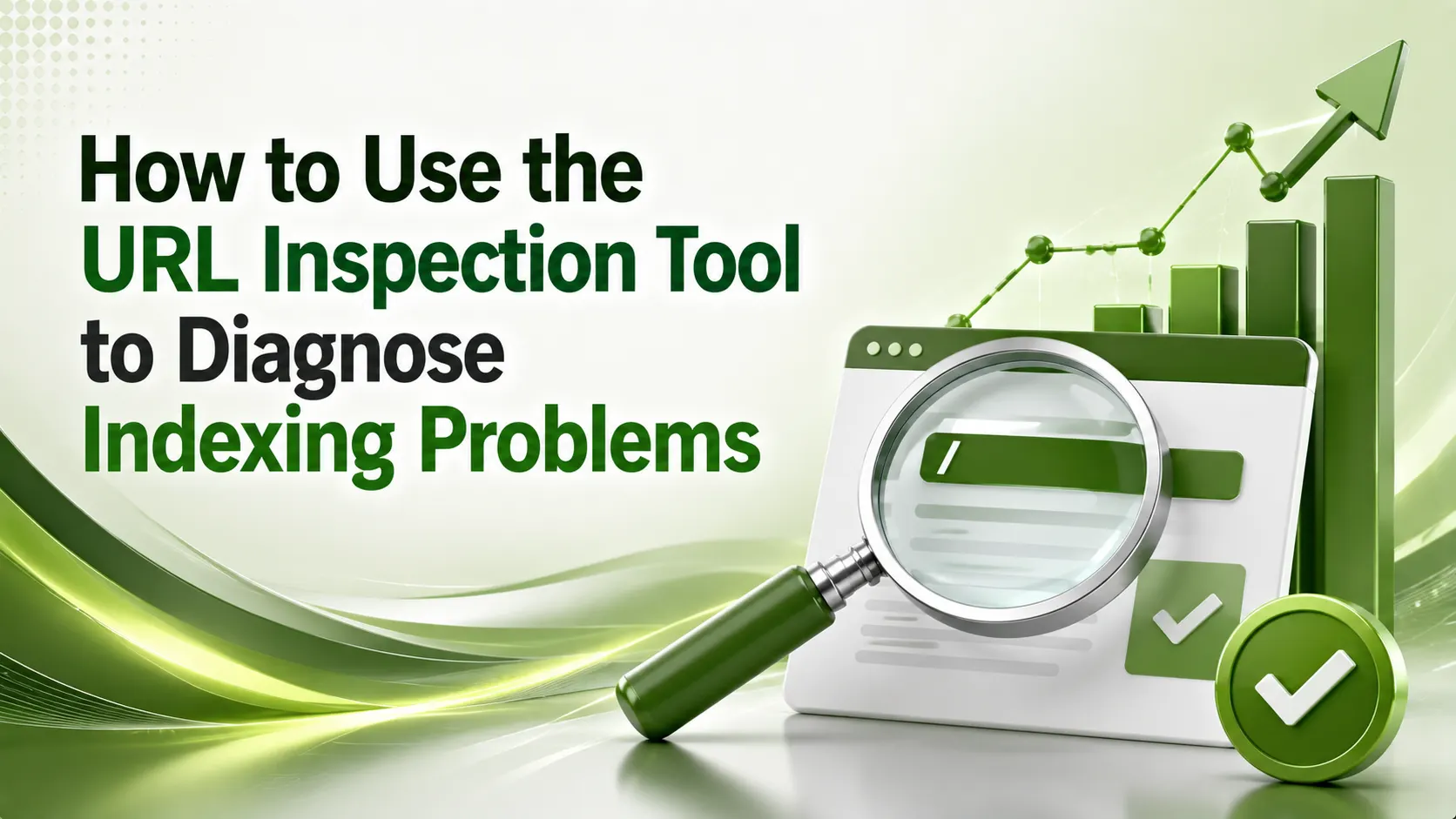
Discovered vs Crawled currently not indexed needs completely different fixes. Here's how to read every URL Inspection verdict and actually resolve it.
Table of Contents
ToggleThe URL Inspection tool is the fastest way to stop guessing why a page won't index. Paste a URL into Search Console's inspection bar and it tells you exactly what Google saw, what Google decided, and which canonical it picked instead of yours, no theory required.
Most site owners discover indexing problems the hard way: a page gets published, weeks pass, and it never shows up in search. By then the mystery has compounded, was it never crawled, crawled and rejected, or indexed once and quietly dropped?
The URL Inspection tool answers that question directly for a single URL, showing the exact coverage status, the last crawl date, the canonical Google selected, and a live rendering test that catches problems a cached view can't.
This guide walks through how to read every verdict the URL Inspection tool returns, the specific fixes for each indexing failure, and the diagnostic workflow that turns one search bar into a real debugging tool.
01What the URL Inspection Tool Actually Shows You
IndexLens' 2026 guide describes it well: the URL Inspection tool is the closest thing to looking through Google's eyes at a single URL. For any page you inspect, it returns whether the page is indexed, when it was last crawled, which canonical Google selected, and whether structured data or mobile usability issues exist.
Google's own Search Console Help documentation notes there are two ways to reach it, typing the fully-qualified URL directly into the inspection search bar at the top of any Search Console screen, or clicking an Inspect link next to a URL inside most other reports.
02Two Modes: Indexed Version vs Live Test
Darulahsaan's 2026 guide explains the distinction clearly, and it's the single most important thing to understand before diagnosing anything. The default view shows what Google currently has stored in its index from the last successful crawl, a historical snapshot Google used for actual ranking decisions.
The Live Test mode does something different: it performs real-time crawling and rendering of your current page version. This validates fixes you just implemented and shows how Google renders JavaScript-heavy pages, without affecting your actual indexing status either way.
Indexing Insight's research flags a nuance worth knowing: a page can show "crawled - currently not indexed" today even though it was indexed successfully for years before quietly dropping out. Check whether a flagged page was ever indexed previously before assuming it never made the cut.
03Diagnosing "Discovered - Currently Not Indexed"
This status means Google knows the URL exists, likely from your sitemap or an internal link, but hasn't actually crawled it yet. Ahrefs' guide to the status ties this directly to crawl budget: if your crawlable URLs exceed what Google is willing to spend on your site, pages queue up in this state.
For a handful of affected pages, requesting indexing directly through the URL Inspection tool is the fastest fix. For a large batch, the underlying cause usually needs addressing first, either building more internal or external links to the affected pages, or trimming low-value URLs competing for the same crawl budget.
04Diagnosing "Crawled - Currently Not Indexed"
This is a fundamentally different problem. Trydecoding's 2026 breakdown draws the line precisely: "crawled" means Google already evaluated the page and made a deliberate decision not to index it, not a queue delay, an actual quality judgment. The URL Inspection tool is what surfaces this distinction in the first place, since a general ranking check won't tell you which of the two states you're actually in.
The Library Linkbot's diagnostic workflow lists the likeliest culprits: thin or duplicate content, a canonical pointing elsewhere, orphan pages with no internal links signaling low importance, or the page simply not clearing Google's relevance bar for its topic. Fix the underlying content or linking issue before requesting indexing again, since repeating the request without a change rarely helps.
05Checking for Canonical Mismatches
SearchEngineInfo's 2026 complete guide to Search Console flags this as one of the most common silent indexing killers: if the URL Inspection tool shows a different canonical URL than the one you intended, you have a canonical mismatch actively diverting Google's attention to a version you didn't choose.
Resolving it usually means auditing for duplicate or near-duplicate content across your site, correcting canonical tags to consistently point at your preferred version, and making sure your internal links point at that same preferred URL rather than the duplicate.
06Using Live Test to Debug Rendering Issues
Goodfellastech's 2025 guide highlights a use case that catches problems no coverage status alone reveals: the Live Test's rendering view shows exactly how Google renders your page, including JavaScript-generated content. Missing content, broken layouts, or error states in that rendered version point directly to a technical SEO problem.
The tool's screenshot feature makes this concrete, comparing how your page looks to Google versus how it appears to a regular visitor. Significant differences almost always signal a rendering issue that needs developer attention, not a content or relevance problem.
The core diagnostic split: content or canonical problems need fixing at the source, while rendering issues need the Live Test.
07Coverage Status Meanings and Fixes
MQL Magnet's practitioner guide to the tool, built from over 16 years of hands-on debugging, maps cleanly onto the statuses most sites encounter.
| Status | Meaning | Primary Fix |
|---|---|---|
| Submitted and indexed | Page is live in Google's index | No action needed; monitor periodically |
| Discovered - currently not indexed | Known but not yet crawled | Request indexing or improve internal/external links |
| Crawled - currently not indexed | Crawled and deliberately excluded | Improve content quality, fix orphan-page linking |
| Duplicate, Google chose different canonical | Canonical mismatch | Correct canonical tags and internal link consistency |
| Excluded by noindex tag | Explicit noindex directive found | Remove the tag if indexing was intended |
08Quick Technical Checks Before Requesting Indexing
Before using the Request Indexing button, confirm these three things aren't silently blocking the page. Checking robots.txt and meta tags takes seconds and prevents a wasted request.
1. Check robots.txt isn't blocking the path:
   https://yourdomain.com/robots.txt
   Look for: Disallow: /path-that-matches-your-url

2. View page source for a noindex meta tag:
   <meta name="robots" content="noindex">
   If present and unintended, remove it and re-deploy.

3. Confirm the canonical tag points to itself (if this
   page should be the canonical version):
   <link rel="canonical" href="https://yourdomain.com/this-exact-page/">

4. Verify the page returns a 200 status code, not a
   redirect or 404, using curl -I https://yourdomain.com/page/
09Step-by-Step Diagnostic Checklist
A consistent workflow beats ad hoc checking with the URL Inspection tool, especially when diagnosing several pages at once.
Inspect the URL and note the exact coverage status, not just "not indexed."
Check the last crawl date, a stale date on a recently updated page means Google hasn't seen your changes yet.
Compare the selected canonical against your intended canonical URL.
Run a Live Test to catch rendering issues the cached version won't show.
Fix the root cause first, then use Request Indexing only for genuinely priority URLs, since daily quota is limited.
10Priority Diagnostic Workflow
Five steps summarize a complete indexing diagnosis. Tap each one for the specific action.
Inspect and Read Status
Paste the URL into the inspection bar and note the exact coverage status Google returns, not a general impression.
11Indexing Health Score
Score a specific URL against the factors that determine whether it's likely to index successfully.
Indexing Health Score
Select the option that matches the URL you're diagnosing
12FAQs on the URL Inspection Tool
Discovered means Google knows the URL exists but hasn't crawled it yet, usually a crawl budget issue. Crawled means Google evaluated it and deliberately chose not to index it. The URL Inspection tool shows you which one you're dealing with directly.
No. The Live Test is purely diagnostic, it fetches and renders the current page in real time without changing how the page is indexed.
Google doesn't publish an official limit, but practitioners typically see 10 to 15 manual requests allowed per day before hitting a quota wall.
No. Fix the underlying issue first, thin content, canonical mismatch, or a technical block. Repeating requests without a change rarely resolves the problem.
Yes. Pages can move from indexed to "crawled - currently not indexed" over time if Google's quality assessment changes, even without any edits on your end.
Related Articles
What We Learn Today
URL Inspection shows Google's exact view of a single page
Discovered vs Crawled not-indexed need entirely different fixes
Canonical mismatches silently divert Google's indexing attention
Live Test catches JavaScript rendering issues cached views miss
Fix root causes before repeating indexing requests
Pages can lose indexed status over time without any edits
Build a Complete Technical SEO Foundation
Indexing health pairs directly with mobile performance and Core Web Vitals. Explore our mobile testing and AMP guides next.
Related Posts

Previous Post
Next Post





- Artificial Intelligence
- Content
- Core Web Vitals
- Development
- Digital Marketing
- Display Advertising
- Google Ads
- Google Search Console
- GTM
- HTML
- HTML CSS
- JavaScript
- Keyword Research
- Link Building
- LinkedIn Ads
- Local SEO
- Meta Ads
- Mobile SEO
- Off-Page SEO
- On-Page SEO
- Paid Media
- Paid Media Analytics
- PHP
- PPC Strategy
- Python
- SEO
- SEO Basics
- SEO Tools
- Social
- Technical SEO