

- Home
- SEODiscover the latest updates from across the United States, including politics, culture, economy, and trending stories. Stay informed on the key events shaping the nation and the topics everyone’s talking about.
- Technical SEOLearn technical SEO concepts including crawling, indexing, XML sitemaps, robots.txt, canonical tags, site architecture, and website performance.
- Local SEOOptimize your business for local seo with Google Business Profile, local citations, reviews, maps, and location-based SEO.
- Mobile SEOImprove your website’s mobile seo performance with responsive design, mobile-first indexing, usability, and page speed optimization.
- On-Page SEOExplore on-page seo optimization techniques such as title tags, meta descriptions, headings, URLs, internal linking, and content optimization.
- Off-Page SEODiscover off-page SEO strategies such as backlinks, digital PR, brand mentions, outreach, and authority building.
- SEO ToolsExplore the best SEO tools for keyword research, technical audits, backlink analysis, rank tracking, and website optimization.
- Core Web VitalsLearn how to improve Core Web Vitals including LCP, INP, CLS, page speed, and overall user experience for better rankings.
- Keyword ResearchLearn how to find profitable keywords, analyze search intent, evaluate competition, and build effective keyword strategies.
- Link BuildingMaster ethical link building techniques, backlink analysis, outreach methods, guest posting, and authority growth strategies.
- Google Search ConsoleLearn how to use Google Search Console to monitor indexing, fix errors, analyze search performance, and improve SEO.
- SEO BasicsLearn the fundamentals of search engine optimization (SEO Basics), including how search engines work, SEO terminology, and beginner-friendly best practices.
- Paid Media
- Display AdvertisingLearn display advertising strategies, banner ads, audience targeting, remarketing, Google Display campaigns, and optimization techniques.
- Google AdsLearn Google Ads strategies, campaign setup, bidding, keywords, Performance Max, Search Ads, and optimization techniques.
- LinkedIn AdsLearn LinkedIn Ads strategies for B2B marketing, lead generation, audience targeting, campaign optimization, and paid social advertising.
- Meta AdsLearn Meta Ads strategies for Facebook and Instagram, including campaign setup, targeting, retargeting, and performance optimization.
- Paid Media AnalyticsLearn paid media analytics, including CPC, CTR, CPA, ROAS, conversion tracking, attribution, reporting, and campaign performance analysis.
- PPC StrategyLearn effective PPC strategies, campaign planning, bidding, keyword targeting, landing pages, conversion optimization, and more.
- ContentTransform your living spaces with inspiration, tips, and trends in interior design. From minimalist decor to bold statements, find ideas for every style and budget.
- Social
- Digital MarketingExplore stories and advice on living your best life. From personal growth to entertainment, dive into the latest in lifestyle trends and inspiration.
- Artificial IntelligenceStay informed about health and wellness with expert advice, fitness tips, and the latest medical breakthroughs. Your guide to a healthier and happier life.
- DevelopmentYou will find development related educational articles
- GTMLearn Google Tag Manager (GTM) with practical guides for tags, triggers, variables, tracking, conversions, and website analytics implementation.
- HTMLLearn HTML with simple tutorials, examples, tags, elements, attributes, and best practices for building modern web pages.
- HTML CSSLearn HTML CSS together with practical tutorials, examples, layouts, styling techniques, responsive design, and modern web development practices.
- HTML JSLearn HTML JS – JavaScript with practical tutorials and examples for adding interactivity, dynamic content, events, and functionality to web pages.
- JavaScriptExplore JavaScript tutorials, examples, concepts, and practical techniques for creating interactive and dynamic websites and web applications.
- PHPLearn PHP programming with practical tutorials, examples, functions, syntax, and web development techniques for beginners and developers.
- PythonLearn Python programming with practical tutorials, examples, syntax, functions, automation techniques, and useful programming concepts.
- Home
- SEODiscover the latest updates from across the United States, including politics, culture, economy, and trending stories. Stay informed on the key events shaping the nation and the topics everyone’s talking about.
- Technical SEOLearn technical SEO concepts including crawling, indexing, XML sitemaps, robots.txt, canonical tags, site architecture, and website performance.
- Local SEOOptimize your business for local seo with Google Business Profile, local citations, reviews, maps, and location-based SEO.
- Mobile SEOImprove your website’s mobile seo performance with responsive design, mobile-first indexing, usability, and page speed optimization.
- On-Page SEOExplore on-page seo optimization techniques such as title tags, meta descriptions, headings, URLs, internal linking, and content optimization.
- Off-Page SEODiscover off-page SEO strategies such as backlinks, digital PR, brand mentions, outreach, and authority building.
- SEO ToolsExplore the best SEO tools for keyword research, technical audits, backlink analysis, rank tracking, and website optimization.
- Core Web VitalsLearn how to improve Core Web Vitals including LCP, INP, CLS, page speed, and overall user experience for better rankings.
- Keyword ResearchLearn how to find profitable keywords, analyze search intent, evaluate competition, and build effective keyword strategies.
- Link BuildingMaster ethical link building techniques, backlink analysis, outreach methods, guest posting, and authority growth strategies.
- Google Search ConsoleLearn how to use Google Search Console to monitor indexing, fix errors, analyze search performance, and improve SEO.
- SEO BasicsLearn the fundamentals of search engine optimization (SEO Basics), including how search engines work, SEO terminology, and beginner-friendly best practices.
- Paid Media
- Display AdvertisingLearn display advertising strategies, banner ads, audience targeting, remarketing, Google Display campaigns, and optimization techniques.
- Google AdsLearn Google Ads strategies, campaign setup, bidding, keywords, Performance Max, Search Ads, and optimization techniques.
- LinkedIn AdsLearn LinkedIn Ads strategies for B2B marketing, lead generation, audience targeting, campaign optimization, and paid social advertising.
- Meta AdsLearn Meta Ads strategies for Facebook and Instagram, including campaign setup, targeting, retargeting, and performance optimization.
- Paid Media AnalyticsLearn paid media analytics, including CPC, CTR, CPA, ROAS, conversion tracking, attribution, reporting, and campaign performance analysis.
- PPC StrategyLearn effective PPC strategies, campaign planning, bidding, keyword targeting, landing pages, conversion optimization, and more.
- ContentTransform your living spaces with inspiration, tips, and trends in interior design. From minimalist decor to bold statements, find ideas for every style and budget.
- Social
- Digital MarketingExplore stories and advice on living your best life. From personal growth to entertainment, dive into the latest in lifestyle trends and inspiration.
- Artificial IntelligenceStay informed about health and wellness with expert advice, fitness tips, and the latest medical breakthroughs. Your guide to a healthier and happier life.
- DevelopmentYou will find development related educational articles
- GTMLearn Google Tag Manager (GTM) with practical guides for tags, triggers, variables, tracking, conversions, and website analytics implementation.
- HTMLLearn HTML with simple tutorials, examples, tags, elements, attributes, and best practices for building modern web pages.
- HTML CSSLearn HTML CSS together with practical tutorials, examples, layouts, styling techniques, responsive design, and modern web development practices.
- HTML JSLearn HTML JS – JavaScript with practical tutorials and examples for adding interactivity, dynamic content, events, and functionality to web pages.
- JavaScriptExplore JavaScript tutorials, examples, concepts, and practical techniques for creating interactive and dynamic websites and web applications.
- PHPLearn PHP programming with practical tutorials, examples, functions, syntax, and web development techniques for beginners and developers.
- PythonLearn Python programming with practical tutorials, examples, syntax, functions, automation techniques, and useful programming concepts.
Now Reading: Dark Mode Toggle Using JavaScript: Complete Implementation Guide
-
01
Dark Mode Toggle Using JavaScript: Complete Implementation Guide
- Home//
- SEO//Discover the latest updates from across the United States, including politics, culture, economy, and trending stories. Stay informed on the key events shaping the nation and the topics everyone’s talking about.
- Technical SEO//Learn technical SEO concepts including crawling, indexing, XML sitemaps, robots.txt, canonical tags, site architecture, and website performance.
- Local SEO//Optimize your business for local seo with Google Business Profile, local citations, reviews, maps, and location-based SEO.
- Mobile SEO//Improve your website’s mobile seo performance with responsive design, mobile-first indexing, usability, and page speed optimization.
- On-Page SEO//Explore on-page seo optimization techniques such as title tags, meta descriptions, headings, URLs, internal linking, and content optimization.
- Off-Page SEO//Discover off-page SEO strategies such as backlinks, digital PR, brand mentions, outreach, and authority building.
- SEO Tools//Explore the best SEO tools for keyword research, technical audits, backlink analysis, rank tracking, and website optimization.
- Core Web Vitals//Learn how to improve Core Web Vitals including LCP, INP, CLS, page speed, and overall user experience for better rankings.
- Keyword Research//Learn how to find profitable keywords, analyze search intent, evaluate competition, and build effective keyword strategies.
- Link Building//Master ethical link building techniques, backlink analysis, outreach methods, guest posting, and authority growth strategies.
- Google Search Console//Learn how to use Google Search Console to monitor indexing, fix errors, analyze search performance, and improve SEO.
- SEO Basics//Learn the fundamentals of search engine optimization (SEO Basics), including how search engines work, SEO terminology, and beginner-friendly best practices.
- Paid Media//
- Display Advertising//Learn display advertising strategies, banner ads, audience targeting, remarketing, Google Display campaigns, and optimization techniques.
- Google Ads//Learn Google Ads strategies, campaign setup, bidding, keywords, Performance Max, Search Ads, and optimization techniques.
- LinkedIn Ads//Learn LinkedIn Ads strategies for B2B marketing, lead generation, audience targeting, campaign optimization, and paid social advertising.
- Meta Ads//Learn Meta Ads strategies for Facebook and Instagram, including campaign setup, targeting, retargeting, and performance optimization.
- Paid Media Analytics//Learn paid media analytics, including CPC, CTR, CPA, ROAS, conversion tracking, attribution, reporting, and campaign performance analysis.
- PPC Strategy//Learn effective PPC strategies, campaign planning, bidding, keyword targeting, landing pages, conversion optimization, and more.
- Content//Transform your living spaces with inspiration, tips, and trends in interior design. From minimalist decor to bold statements, find ideas for every style and budget.
- Social//
- Digital Marketing//Explore stories and advice on living your best life. From personal growth to entertainment, dive into the latest in lifestyle trends and inspiration.
- Artificial Intelligence//Stay informed about health and wellness with expert advice, fitness tips, and the latest medical breakthroughs. Your guide to a healthier and happier life.
- Development//You will find development related educational articles
- GTM//Learn Google Tag Manager (GTM) with practical guides for tags, triggers, variables, tracking, conversions, and website analytics implementation.
- HTML//Learn HTML with simple tutorials, examples, tags, elements, attributes, and best practices for building modern web pages.
- HTML CSS//Learn HTML CSS together with practical tutorials, examples, layouts, styling techniques, responsive design, and modern web development practices.
- HTML JS//Learn HTML JS – JavaScript with practical tutorials and examples for adding interactivity, dynamic content, events, and functionality to web pages.
- JavaScript//Explore JavaScript tutorials, examples, concepts, and practical techniques for creating interactive and dynamic websites and web applications.
- PHP//Learn PHP programming with practical tutorials, examples, functions, syntax, and web development techniques for beginners and developers.
- Python//Learn Python programming with practical tutorials, examples, syntax, functions, automation techniques, and useful programming concepts.
- Home
- Development
- JavaScript
- Dark Mode Toggle Using JavaScript: Complete Implementation Guide
Dark Mode Toggle Using JavaScript: Complete Implementation Guide

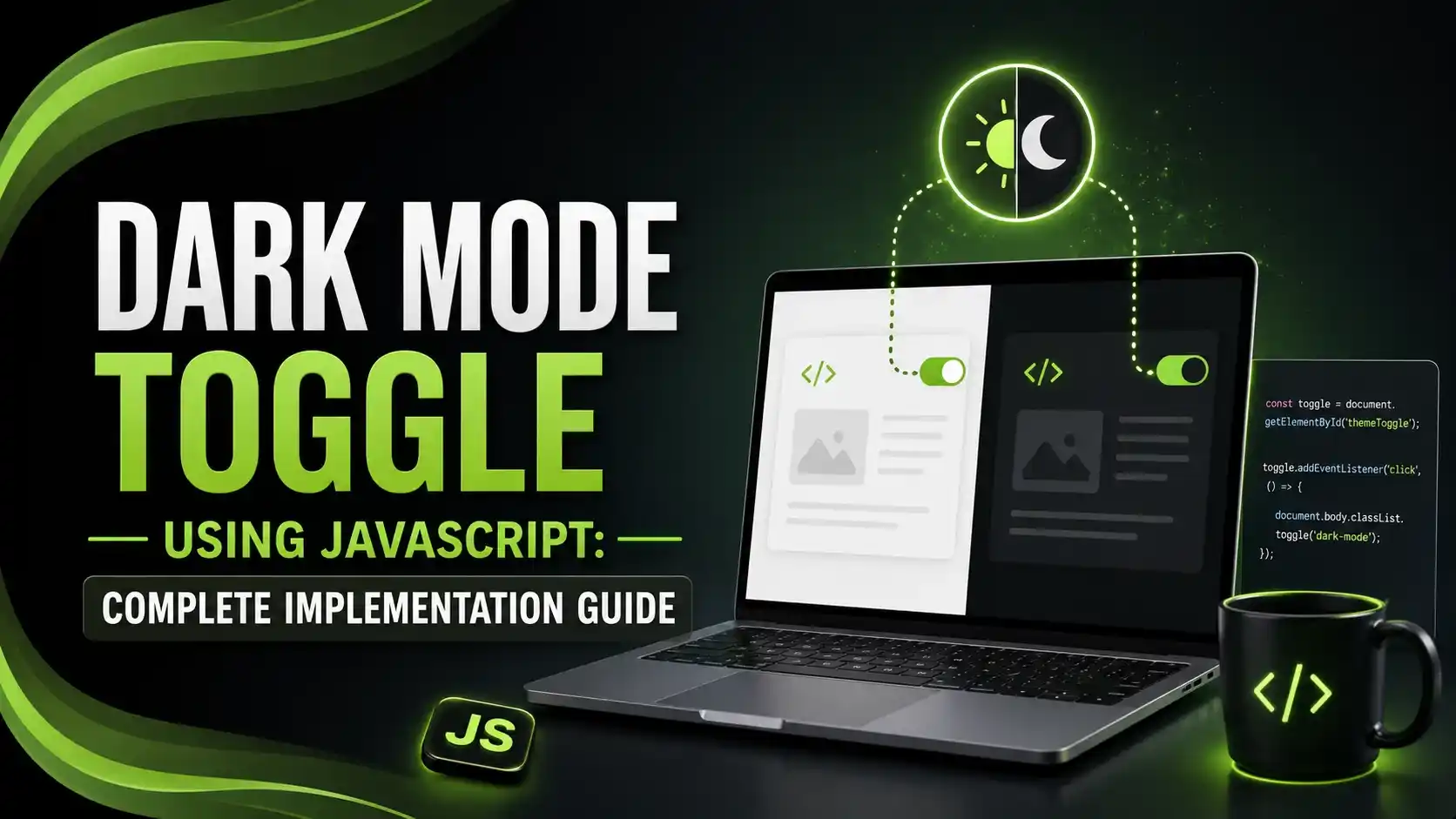
A dark mode toggle using JavaScript needs to check localStorage, then OS preference, then default — and apply it before the page even renders.
Table of Contents
ToggleA dark mode toggle using JavaScript needs to solve three things at once: read the user's saved preference, respect their OS setting when no preference exists yet, and apply the theme before the page actually renders to avoid a jarring flash of the wrong color scheme.
01Dark Mode Toggle Using JavaScript: The Core Pattern
The pattern practitioners call the "preference cascade" checks three sources in order: localStorage first, since it reflects an explicit user choice, then the prefers-color-scheme media query as a fallback, then a default light theme if neither applies.
Getting the initial page load right matters more than the toggle button itself. Applying the theme class before the page renders prevents what's commonly called FOUC, a flash of unstyled or incorrectly themed content that briefly shows the wrong colors before JavaScript corrects it.
02Preventing the Flash of Wrong Theme
Callum's guide on DEV Community gets the ordering right: this inline script needs to sit at the very top of the head, executed as early as possible, before any CSS or content renders.
<script>
  document.documentElement.classList.toggle(
    'dark',
    localStorage.theme === 'dark' ||
    (!('theme' in localStorage) &&
      window.matchMedia('(prefers-color-scheme: dark)').matches)
  );
</script>
Ollie Williams' guide highlights a simpler native option many implementations skip: setting a meta tag with name="color-scheme" and content="light dark" lets the browser handle native form controls, scrollbars, and other built-in UI elements automatically, without any custom CSS needed for those specific pieces.
03The Toggle Button Function
Once the initial theme is set correctly, the toggle itself just needs to flip the class and save the new preference. whitep4nth3r's guide calls this the "preference cascade" in action, with the stored user preference always taking priority once it exists.
function getInitialTheme() {
  const saved = localStorage.getItem('theme');
  if (saved) return saved;

  return window.matchMedia('(prefers-color-scheme: dark)').matches
    ? 'dark'
    : 'light';
}

function applyTheme(theme) {
  document.documentElement.classList.toggle('dark', theme === 'dark');
  localStorage.setItem('theme', theme);
}

// Set initial theme on page load
applyTheme(getInitialTheme());

// Wire up the toggle button
document.getElementById('theme-toggle').addEventListener('click', () => {
  const isDark = document.documentElement.classList.contains('dark');
  applyTheme(isDark ? 'light' : 'dark');
});
04Pairing the Toggle With CSS Custom Properties
The JavaScript only manages one class, all actual color values should live in CSS custom properties. This keeps the toggle logic simple and makes adding a third theme, or adjusting colors later, a CSS-only change.
:root {
  --bg-color: #ffffff;
  --text-color: #1a1a1a;
  --border-color: #e0e0e0;
  color-scheme: light dark;
}

html.dark {
  --bg-color: #1a1a1a;
  --text-color: #f0f0f0;
  --border-color: #3a3a3a;
}

body {
  background-color: var(--bg-color);
  color: var(--text-color);
  transition: background-color 0.2s ease, color 0.2s ease;
}
05Listening for Live OS Theme Changes
Some users switch their OS theme while your site is still open. Abbey Perini's guide covers listening for this properly, but only when the user hasn't explicitly overridden the setting themselves, otherwise a manual choice would get silently overwritten.
const mediaQuery = window.matchMedia('(prefers-color-scheme: dark)');

mediaQuery.addEventListener('change', (e) => {
  // Only respond to OS changes if the user hasn't set an explicit preference
  if (!localStorage.getItem('theme')) {
    applyTheme(e.matches ? 'dark' : 'light');
  }
});
💡 Quick Tip: test this behavior using Chrome DevTools' Rendering panel, which lets you emulate prefers-color-scheme without actually changing your OS settings, making it far faster to verify both branches of the logic.
06Storage Approach Comparison
A quick reference for the different ways to persist a theme preference.
| Storage Method | Persists Across | Best For |
|---|---|---|
| localStorage | Sessions, same browser only | Most sites, no backend required |
| Cookie + server-side | Devices, if tied to a user account | Logged-in apps wanting cross-device sync |
| prefers-color-scheme only | Nothing explicit, follows OS always | Simple sites with no manual override needed |
07Implementation Checklist
A short list to confirm before shipping a dark mode toggle to production.
Inline the initial theme script in the head, applying it after first paint causes a visible flash.
Check localStorage before OS preference, an explicit user choice should always win.
Keep all colors in CSS custom properties, never hardcode colors that need to change per theme.
Set color-scheme in CSS, this helps native browser UI like scrollbars and form controls match automatically.
Only listen for OS changes when no explicit choice exists, otherwise a manual toggle gets silently overridden.
08Common Questions
This is the flash of wrong theme (FOUC) problem. It happens when the theme is applied after the page renders. Fix it by inlining a small script at the very top of the head that runs before first paint.
Check localStorage first. If the user has explicitly chosen a theme before, that choice should always take priority over their current OS-level setting.
CSS alone with prefers-color-scheme works if you only want to follow the OS setting. JavaScript is needed if you want to let users manually override that setting and remember their choice.
It tells the browser to automatically theme native UI elements, like scrollbars, form inputs, and date pickers, to match the current color scheme without needing custom CSS for each one.
Chrome DevTools has a Rendering panel that lets you emulate prefers-color-scheme directly in the browser, letting you test both light and dark branches without touching your actual system settings.
Related Articles
What We Learn Today
Check localStorage, then OS preference, then default
Inline the initial theme script to prevent a visible flash
Keep colors in CSS custom properties, not JavaScript
Set color-scheme so native browser UI matches automatically
Only auto-follow OS changes when no explicit choice exists
DevTools can emulate prefers-color-scheme for easier testing
Build a Complete Front-End JavaScript Toolkit
Dark mode pairs well with other content UX features like scrollspy highlighting and auto-generated navigation. Explore both guides next.
Related Posts


Previous Post
Next Post
Previous Post

Next Post




- Artificial Intelligence
- Content
- Core Web Vitals
- Development
- Digital Marketing
- Display Advertising
- Google Ads
- Google Search Console
- GTM
- HTML
- HTML CSS
- JavaScript
- Keyword Research
- Link Building
- LinkedIn Ads
- Local SEO
- Meta Ads
- Mobile SEO
- Off-Page SEO
- On-Page SEO
- Paid Media
- Paid Media Analytics
- PHP
- PPC Strategy
- Python
- SEO
- SEO Basics
- SEO Tools
- Social
- Technical SEO