
- Home
- SEODiscover the latest updates from across the United States, including politics, culture, economy, and trending stories. Stay informed on the key events shaping the nation and the topics everyone’s talking about.
- Technical SEOLearn technical SEO concepts including crawling, indexing, XML sitemaps, robots.txt, canonical tags, site architecture, and website performance.
- Local SEOOptimize your business for local seo with Google Business Profile, local citations, reviews, maps, and location-based SEO.
- Mobile SEOImprove your website’s mobile seo performance with responsive design, mobile-first indexing, usability, and page speed optimization.
- On-Page SEOExplore on-page seo optimization techniques such as title tags, meta descriptions, headings, URLs, internal linking, and content optimization.
- Off-Page SEODiscover off-page SEO strategies such as backlinks, digital PR, brand mentions, outreach, and authority building.
- SEO ToolsExplore the best SEO tools for keyword research, technical audits, backlink analysis, rank tracking, and website optimization.
- Core Web VitalsLearn how to improve Core Web Vitals including LCP, INP, CLS, page speed, and overall user experience for better rankings.
- Keyword ResearchLearn how to find profitable keywords, analyze search intent, evaluate competition, and build effective keyword strategies.
- Link BuildingMaster ethical link building techniques, backlink analysis, outreach methods, guest posting, and authority growth strategies.
- Google Search ConsoleLearn how to use Google Search Console to monitor indexing, fix errors, analyze search performance, and improve SEO.
- SEO BasicsLearn the fundamentals of search engine optimization (SEO Basics), including how search engines work, SEO terminology, and beginner-friendly best practices.
- Paid Media
- Display AdvertisingLearn display advertising strategies, banner ads, audience targeting, remarketing, Google Display campaigns, and optimization techniques.
- Google AdsLearn Google Ads strategies, campaign setup, bidding, keywords, Performance Max, Search Ads, and optimization techniques.
- LinkedIn AdsLearn LinkedIn Ads strategies for B2B marketing, lead generation, audience targeting, campaign optimization, and paid social advertising.
- Meta AdsLearn Meta Ads strategies for Facebook and Instagram, including campaign setup, targeting, retargeting, and performance optimization.
- Paid Media AnalyticsLearn paid media analytics, including CPC, CTR, CPA, ROAS, conversion tracking, attribution, reporting, and campaign performance analysis.
- PPC StrategyLearn effective PPC strategies, campaign planning, bidding, keyword targeting, landing pages, conversion optimization, and more.
- ContentTransform your living spaces with inspiration, tips, and trends in interior design. From minimalist decor to bold statements, find ideas for every style and budget.
- Social
- Digital MarketingExplore stories and advice on living your best life. From personal growth to entertainment, dive into the latest in lifestyle trends and inspiration.
- Artificial IntelligenceStay informed about health and wellness with expert advice, fitness tips, and the latest medical breakthroughs. Your guide to a healthier and happier life.
- DevelopmentYou will find development related educational articles
- GTMLearn Google Tag Manager (GTM) with practical guides for tags, triggers, variables, tracking, conversions, and website analytics implementation.
- HTMLLearn HTML with simple tutorials, examples, tags, elements, attributes, and best practices for building modern web pages.
- HTML CSSLearn HTML CSS together with practical tutorials, examples, layouts, styling techniques, responsive design, and modern web development practices.
- HTML JSLearn HTML JS – JavaScript with practical tutorials and examples for adding interactivity, dynamic content, events, and functionality to web pages.
- JavaScriptExplore JavaScript tutorials, examples, concepts, and practical techniques for creating interactive and dynamic websites and web applications.
- PHPLearn PHP programming with practical tutorials, examples, functions, syntax, and web development techniques for beginners and developers.
- PythonLearn Python programming with practical tutorials, examples, syntax, functions, automation techniques, and useful programming concepts.
- Home
- SEODiscover the latest updates from across the United States, including politics, culture, economy, and trending stories. Stay informed on the key events shaping the nation and the topics everyone’s talking about.
- Technical SEOLearn technical SEO concepts including crawling, indexing, XML sitemaps, robots.txt, canonical tags, site architecture, and website performance.
- Local SEOOptimize your business for local seo with Google Business Profile, local citations, reviews, maps, and location-based SEO.
- Mobile SEOImprove your website’s mobile seo performance with responsive design, mobile-first indexing, usability, and page speed optimization.
- On-Page SEOExplore on-page seo optimization techniques such as title tags, meta descriptions, headings, URLs, internal linking, and content optimization.
- Off-Page SEODiscover off-page SEO strategies such as backlinks, digital PR, brand mentions, outreach, and authority building.
- SEO ToolsExplore the best SEO tools for keyword research, technical audits, backlink analysis, rank tracking, and website optimization.
- Core Web VitalsLearn how to improve Core Web Vitals including LCP, INP, CLS, page speed, and overall user experience for better rankings.
- Keyword ResearchLearn how to find profitable keywords, analyze search intent, evaluate competition, and build effective keyword strategies.
- Link BuildingMaster ethical link building techniques, backlink analysis, outreach methods, guest posting, and authority growth strategies.
- Google Search ConsoleLearn how to use Google Search Console to monitor indexing, fix errors, analyze search performance, and improve SEO.
- SEO BasicsLearn the fundamentals of search engine optimization (SEO Basics), including how search engines work, SEO terminology, and beginner-friendly best practices.
- Paid Media
- Display AdvertisingLearn display advertising strategies, banner ads, audience targeting, remarketing, Google Display campaigns, and optimization techniques.
- Google AdsLearn Google Ads strategies, campaign setup, bidding, keywords, Performance Max, Search Ads, and optimization techniques.
- LinkedIn AdsLearn LinkedIn Ads strategies for B2B marketing, lead generation, audience targeting, campaign optimization, and paid social advertising.
- Meta AdsLearn Meta Ads strategies for Facebook and Instagram, including campaign setup, targeting, retargeting, and performance optimization.
- Paid Media AnalyticsLearn paid media analytics, including CPC, CTR, CPA, ROAS, conversion tracking, attribution, reporting, and campaign performance analysis.
- PPC StrategyLearn effective PPC strategies, campaign planning, bidding, keyword targeting, landing pages, conversion optimization, and more.
- ContentTransform your living spaces with inspiration, tips, and trends in interior design. From minimalist decor to bold statements, find ideas for every style and budget.
- Social
- Digital MarketingExplore stories and advice on living your best life. From personal growth to entertainment, dive into the latest in lifestyle trends and inspiration.
- Artificial IntelligenceStay informed about health and wellness with expert advice, fitness tips, and the latest medical breakthroughs. Your guide to a healthier and happier life.
- DevelopmentYou will find development related educational articles
- GTMLearn Google Tag Manager (GTM) with practical guides for tags, triggers, variables, tracking, conversions, and website analytics implementation.
- HTMLLearn HTML with simple tutorials, examples, tags, elements, attributes, and best practices for building modern web pages.
- HTML CSSLearn HTML CSS together with practical tutorials, examples, layouts, styling techniques, responsive design, and modern web development practices.
- HTML JSLearn HTML JS – JavaScript with practical tutorials and examples for adding interactivity, dynamic content, events, and functionality to web pages.
- JavaScriptExplore JavaScript tutorials, examples, concepts, and practical techniques for creating interactive and dynamic websites and web applications.
- PHPLearn PHP programming with practical tutorials, examples, functions, syntax, and web development techniques for beginners and developers.
- PythonLearn Python programming with practical tutorials, examples, syntax, functions, automation techniques, and useful programming concepts.
Now Reading: Critical CSS Explained: Speed Up Your Website Without Breaking Design
-
01
Critical CSS Explained: Speed Up Your Website Without Breaking Design
- Home//
- SEO//Discover the latest updates from across the United States, including politics, culture, economy, and trending stories. Stay informed on the key events shaping the nation and the topics everyone’s talking about.
- Technical SEO//Learn technical SEO concepts including crawling, indexing, XML sitemaps, robots.txt, canonical tags, site architecture, and website performance.
- Local SEO//Optimize your business for local seo with Google Business Profile, local citations, reviews, maps, and location-based SEO.
- Mobile SEO//Improve your website’s mobile seo performance with responsive design, mobile-first indexing, usability, and page speed optimization.
- On-Page SEO//Explore on-page seo optimization techniques such as title tags, meta descriptions, headings, URLs, internal linking, and content optimization.
- Off-Page SEO//Discover off-page SEO strategies such as backlinks, digital PR, brand mentions, outreach, and authority building.
- SEO Tools//Explore the best SEO tools for keyword research, technical audits, backlink analysis, rank tracking, and website optimization.
- Core Web Vitals//Learn how to improve Core Web Vitals including LCP, INP, CLS, page speed, and overall user experience for better rankings.
- Keyword Research//Learn how to find profitable keywords, analyze search intent, evaluate competition, and build effective keyword strategies.
- Link Building//Master ethical link building techniques, backlink analysis, outreach methods, guest posting, and authority growth strategies.
- Google Search Console//Learn how to use Google Search Console to monitor indexing, fix errors, analyze search performance, and improve SEO.
- SEO Basics//Learn the fundamentals of search engine optimization (SEO Basics), including how search engines work, SEO terminology, and beginner-friendly best practices.
- Paid Media//
- Display Advertising//Learn display advertising strategies, banner ads, audience targeting, remarketing, Google Display campaigns, and optimization techniques.
- Google Ads//Learn Google Ads strategies, campaign setup, bidding, keywords, Performance Max, Search Ads, and optimization techniques.
- LinkedIn Ads//Learn LinkedIn Ads strategies for B2B marketing, lead generation, audience targeting, campaign optimization, and paid social advertising.
- Meta Ads//Learn Meta Ads strategies for Facebook and Instagram, including campaign setup, targeting, retargeting, and performance optimization.
- Paid Media Analytics//Learn paid media analytics, including CPC, CTR, CPA, ROAS, conversion tracking, attribution, reporting, and campaign performance analysis.
- PPC Strategy//Learn effective PPC strategies, campaign planning, bidding, keyword targeting, landing pages, conversion optimization, and more.
- Content//Transform your living spaces with inspiration, tips, and trends in interior design. From minimalist decor to bold statements, find ideas for every style and budget.
- Social//
- Digital Marketing//Explore stories and advice on living your best life. From personal growth to entertainment, dive into the latest in lifestyle trends and inspiration.
- Artificial Intelligence//Stay informed about health and wellness with expert advice, fitness tips, and the latest medical breakthroughs. Your guide to a healthier and happier life.
- Development//You will find development related educational articles
- GTM//Learn Google Tag Manager (GTM) with practical guides for tags, triggers, variables, tracking, conversions, and website analytics implementation.
- HTML//Learn HTML with simple tutorials, examples, tags, elements, attributes, and best practices for building modern web pages.
- HTML CSS//Learn HTML CSS together with practical tutorials, examples, layouts, styling techniques, responsive design, and modern web development practices.
- HTML JS//Learn HTML JS – JavaScript with practical tutorials and examples for adding interactivity, dynamic content, events, and functionality to web pages.
- JavaScript//Explore JavaScript tutorials, examples, concepts, and practical techniques for creating interactive and dynamic websites and web applications.
- PHP//Learn PHP programming with practical tutorials, examples, functions, syntax, and web development techniques for beginners and developers.
- Python//Learn Python programming with practical tutorials, examples, syntax, functions, automation techniques, and useful programming concepts.
- Home
- SEO
- Core Web Vitals
- Critical CSS Explained: Speed Up Your Website Without Breaking Design
Critical CSS Explained: Speed Up Your Website Without Breaking Design

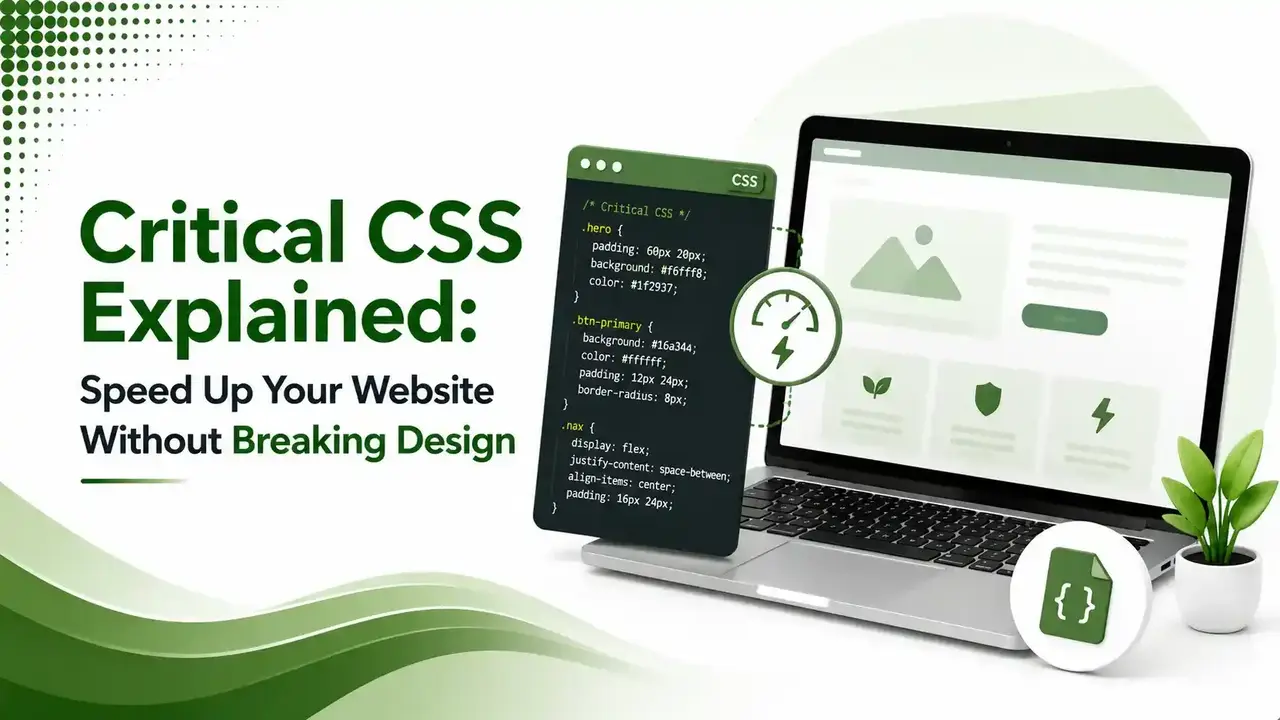
Get critical CSS right and visitors see a styled page almost instantly. Get it wrong and buttons lose their hover state. Here's real extraction code, the correct HTML pattern, and exactly where this technique tends to break layouts.
Table of Contents
ToggleCritical CSS is one of the highest-impact page speed fixes available, and also one of the most likely to quietly break your layout if done carelessly. Get it right and visitors see a fully styled page almost instantly. Get it wrong and they see a flash of unstyled content, or a button that loses its hover state entirely. Here is how to do it correctly.
Critical CSS is the minimal set of CSS rules needed to render the visible, above-the-fold portion of a webpage.
Inlining that small CSS block directly in the HTML head, then loading the rest of the stylesheet without blocking render, lets the browser paint immediately instead of waiting for the full CSS file to download.
We covered the broader render-blocking problem in our render-blocking resources guide. Critical CSS is the specific technique for solving the CSS half of that problem without simply deleting styles visitors actually need.
paint happens immediately once critical CSS is inlined, no external request needed
parts every setup needs: inlined critical CSS, and deferred full CSS
benefit for returning visitors whose browser already cached the full stylesheet
What "Above the Fold" Actually Means Here
Visible without scrolling: header, hero, first content block
Everything below: loaded normally, does not need to be critical
How a Critical CSS Extraction Pipeline Works
Generating Critical CSS With the Critical npm Package
According to web.dev's official guide to extracting critical-CSS, tools like Critical automatically detect stylesheets and handle the entire extraction process without manual DOM analysis.
// generate-critical.js
import { generate } from 'critical';

await generate({
  inline: true,
  base: 'dist/',
  src: 'index.html',
  target: {
    html: 'index-critical.html',
    css: 'critical.css'
  },
  width: 1300,
  height: 900
});
A working Node.js script: loads the page, extracts critical CSS, inlines it into a new HTML file
The Correct HTML Output Pattern
<head>
  <!-- Critical-CSS, inlined, paints immediately -->
  <style>
    body { margin: 0; font-family: sans-serif; }
    .hero { background: #2b2b2b; padding: 60px 20px; color: #fff; }
  </style>

  <!-- Full stylesheet, non-blocking -->
  <link rel="preload" href="styles.css" as="style" onload="this.onload=null;this.rel='stylesheet'">
  <noscript><link rel="stylesheet" href="styles.css"></noscript>
</head>
The noscript fallback ensures styling still loads correctly if JavaScript is disabled
Critical CSS tools only see what renders in the initial headless browser snapshot. Hover states, JavaScript-injected classes, and content that appears after user interaction are frequently missed, causing those elements to look broken until the full stylesheet finishes loading behind them.
Common Causes of Broken Layouts After Implementation
| Cause | What Happens |
|---|---|
| Hover and focus states excluded | Buttons and links look unstyled until interacted with |
| JavaScript-injected classes missed | Modals, dropdowns, and tabs render unstyled on first appearance |
| Single viewport size tested | Mobile layout breaks even though desktop looks correct |
| Dynamic content changes the fold | A rotating banner or A/B test shifts what's actually visible first |
| Stale critical CSS after a redesign | Old inlined styles conflict with updated full stylesheet |
Critical CSS Breakage Risk Checker
Answer a few questions about your site to see how likely critical CSS is to cause visible breakage.
Critical CSS Breakage Risk Checker
Select the option that best matches your site for each factor
Manual Extraction vs. Automated Tools
According to Webeyez's guide to critical CSS generation, running an extraction tool against key templates, homepage, category, product, and cart pages, produces a reusable baseline rather than requiring manual work on every single page individually.
According to Kigo Studio's critical CSS generator documentation, most tools work the same way underneath: load the page in a headless browser at a defined viewport, check which elements are visible, and extract only the matching CSS rules.
WordPress-Specific Implementation Options
According to Jetpack's guide referenced above, installing a dedicated plugin handles extraction and inlining automatically for WordPress sites, without requiring a custom Node.js build pipeline.
According to Core Web Vitals.io's critical CSS generator tool, three common methods exist for deferring the remaining stylesheet once critical CSS is inlined: a preload swap, a small inline script, or a dedicated deferred-loading plugin.
Testing Before You Deploy
According to Jetpack's guide to generating critical CSS in WordPress, the Chrome DevTools Coverage tab shows what percentage of CSS goes unused on initial load, helping confirm whether extraction was accurate.
According to Rank Authority's complete guide to critical path CSS generators, testing across multiple device sizes catches the mobile-specific breakage that a desktop-only test would miss entirely.
Rolling Back Safely If Something Breaks
According to Jonas Sebastian Ohlsson's critical path CSS generator tool, keeping the original, unmodified stylesheet available makes reverting a broken deployment straightforward, since the inline block can simply be removed without touching the rest of the site.
A staged rollout, applying the change to a low-traffic template first before rolling it out site-wide, catches most breakage early. This costs a small amount of extra time upfront but avoids a visible, embarrassing layout issue affecting every visitor at once.
Version control matters here too. Treating generated CSS as a build artifact, regenerated automatically rather than hand-edited, keeps the history clean and makes it obvious exactly which deployment introduced any specific issue.
FAQs on Critical CSS
Related Articles
> what_we_learn_today.log
Critical CSS is the minimal ruleset needed for above-the-fold content only
Tools like Critical use a headless browser to detect visible elements automatically
Hover states and JS-injected classes are the most common source of breakage
Test across multiple viewports; desktop-only testing misses mobile breakage
The preload-and-swap pattern keeps the full stylesheet non-blocking
Regenerate critical CSS whenever above-the-fold content or layout changes
Related Posts


Previous Post
Next Post
Previous Post
Next Post




- Artificial Intelligence
- Content
- Core Web Vitals
- Development
- Digital Marketing
- Display Advertising
- Google Ads
- Google Search Console
- GTM
- HTML
- HTML CSS
- JavaScript
- Keyword Research
- Link Building
- LinkedIn Ads
- Local SEO
- Meta Ads
- Mobile SEO
- Off-Page SEO
- On-Page SEO
- Paid Media
- Paid Media Analytics
- PHP
- PPC Strategy
- Python
- SEO
- SEO Basics
- SEO Tools
- Social
- Technical SEO