
Now Reading: Track Button Clicks in GA4 Without Coding
-
01
Track Button Clicks in GA4 Without Coding

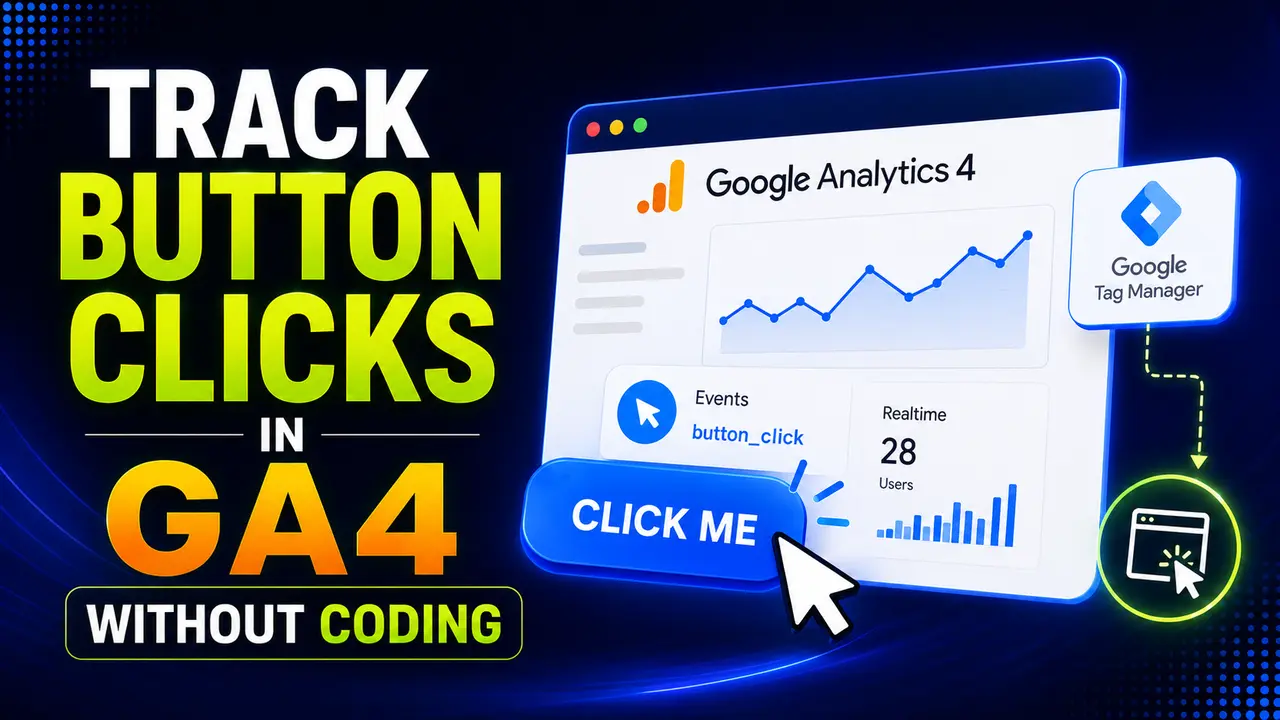
Most buttons never show up in GA4 because nobody wired them up. This guide shows the exact GTM trigger, variables, and CSS selector fix to track button clicks in GA4 without writing code.
Hey! If you've ever asked a developer to add tracking to a button and watched the request sit in a backlog for weeks, today's guide is going to feel like a shortcut.
A button click is one of the clearest signals a visitor can send you, and yet most sites never see it in their reports because nobody wired it up. The good news is that you can track button clicks in GA4 without a single line of custom code, once you know which two settings actually matter.
How Do You Track Button Clicks in GA4?
GA4's own Enhanced Measurement does track some clicks automatically, but only outbound ones. Google's own tutorial on the feature confirms it fires "when a visitor to your website clicks a link that takes them to another website," which includes a button styled to look like one, as long as it points off your domain. A real "Add to Cart" button, a "Download" button, or a tab that just toggles content on the same page gets none of that automatic coverage.
That's the gap this guide closes. To track button clicks in GA4 for anything that isn't an outbound link, you need Google Tag Manager sitting between the click and Analytics: a trigger that recognizes the click, a set of variables that describe what was clicked, and a GA4 event tag that sends it all forward.
None of those three pieces require writing JavaScript. They're all configured entirely inside GTM's own interface, which is exactly why so many marketing teams learn to track button clicks in GA4 themselves rather than waiting on a developer, and why it's worth learning to track button clicks in GA4 properly once instead of patching it later.
Tip
New to Google Tag Manager itself? Our beginner's guide to GTM covers containers, tags, and workspaces before you get here.
All Elements vs Just Links: Picking the Right Trigger Type
Once you decide to track button clicks in GA4 through GTM, the very first decision is which trigger type to use. Tag Manager's own help center article on the Click trigger lays out two distinct listener types, and picking the wrong one is the single most common reason a "working" setup never fires for a real button.
An All Elements trigger listens for clicks on anything on the page, links, images, and buttons included. A Just Links trigger only listens for clicks that land on a real <a> tag. A visually convincing "button" that's actually built out of a <div> or a real <button> element will never satisfy a Just Links trigger, no matter how it's styled.
Under the hood, these two listener types push different event names into the data layer. Simo Ahava's guide to GTM's automatic event tracking confirms the split: the All Elements listener pushes gtm.click, while the Just Links listener pushes gtm.linkClick, and only one of the two ever fires for a genuine <button>.

A real browser click on a real <button> versus a real <a> link, captured straight from the data layer.
That real test says everything: clicking the actual button grew the data layer by exactly one push, the gtm.click event. Clicking the actual link grew it by two, gtm.click and gtm.linkClick together. If your GA4 tag is wired to a Just Links trigger and your call to action is a real button, it was never going to fire.
The Click Variables You Need to Turn On
A trigger only tells GTM that a click happened. To describe which click, and to track button clicks in GA4 with any real detail, you need the click variables that come built in, and Tag Manager's own reference for built in variables lists six of them for web containers: Click Element, Click Classes, Click ID, Click Target, Click URL, and Click Text.
They're off by default. Open Variables in the left sidebar, click Configure under Built-In Variables, and tick the ones you plan to use for clicks. Skipping this step is a quiet, common mistake, since a trigger built around a click variable that was never enabled just evaluates to an empty value every time.
// what the real All Elements listener pushes to the data layer,
// captured straight from a real click in Chromium
{
  event: 'gtm.click',
  'gtm.element': 'button',
  'gtm.elementClasses': 'btn',
  'gtm.elementId': 'addToCart',
  'gtm.elementTarget': '',
  'gtm.elementUrl': '',
  'gtm.elementText': 'Add to Cart'
}
Each of those keys is exactly what the matching variable reads back out. Click ID reads gtm.elementId, Click Classes reads gtm.elementClasses, Click Text reads gtm.elementText, and so on. Once you can see the raw object, the variables stop feeling like a black box.
The Nested Button Gotcha: Why Click ID Comes Back Empty
Real buttons are rarely one plain element. An icon, a label span, sometimes both wrapped in extra markup for styling, are nested inside the actual <button>. Analytics Mania's own guide to GTM click tracking calls this out directly: "many buttons are just links that are coded to look visually like buttons," and complex buttons made of several nested pieces can each report a different Click ID depending on exactly which pixel a visitor's cursor lands on.
This nesting problem is the single most common reason a real attempt to track button clicks in GA4 quietly misses real clicks. Here's what that looks like with a real click, not a hypothetical one. This test clicks the small icon nested inside a real "Add to Cart" button, the parent button itself has id="addToCart", and reads back the click variables the way GTM would.

A real click on the icon inside the button, read back exactly the way GTM's own click variables would see it.
The Click ID variable came back completely empty, because it only ever describes the exact element the cursor landed on, and that was the icon, not the button. If your trigger condition checks "Click ID equals addToCart," this click silently never matches, even though a real visitor did exactly what you wanted them to do.
Google Tag Manager runs on roughly 45.5% of all websites where a tag manager is detected, according to w3techs' own usage tracking, which makes this exact nesting gotcha one of the most widely hit click tracking bugs on the web.
Fixing It With the Matches CSS Selector Trigger Condition
Fixing this is what finally lets you track button clicks in GA4 reliably, nested icons and all. GTM's trigger conditions include an operator called "Matches CSS Selector," which checks against the same selector matching the browser's own Element.matches() uses, rather than against a single click variable alone. Combine the button's own selector with its descendant selector, and a click anywhere inside the button counts.
Click Element matches CSS selector #addToCart, #addToCart *The first half of that selector, #addToCart, matches a click that landed on the button itself. The second half, #addToCart *, matches any click that landed on something nested inside it. Tested against the exact same nested icon click from the last section, that combined selector correctly recognized it, while Click ID alone had already come back empty.
Tip
Where you control the markup, ask a developer for one stable id or a data- attribute on the outer button instead. It's a quick request that removes the nesting problem entirely.
Sending the Click to GA4 as a Real Event
With the trigger and variables sorted, the last step is a GA4 Event tag, the piece that finally lets you track button clicks in GA4's own reports. Give the event a clear, snake_case name like button_click, attach the trigger you just built, and map each click variable to an event parameter so it lands in GA4 already labeled.
| GA4 Event Parameter | GTM Variable | Example Value |
|---|---|---|
| button_id | Click ID | addToCart |
| button_text | Click Text | Add to Cart |
| button_classes | Click Classes | btn btn-primary |
| page_location | Page URL | https://brandella.in/pricing/ |
Turn on Preview mode, click the real button on your real site, and confirm the tag fires in the debug panel with the parameter values you expect. GA4's own DebugView shows the same event a second or two later, and Google's own troubleshooting guide for GA4 implementations walks through reading that panel, the real confirmation that the whole chain, trigger, variables, and tag, is wired correctly end to end.
From here, that event behaves like any other in GA4: buildable into a conversion, filterable by button_id, and comparable across pages without touching a line of site code.
Common Pitfalls When Tracking Button Clicks Without Code
A working setup to track button clicks in GA4 today can quietly break next quarter, usually for one of a handful of repeat reasons.
<button> never satisfies a Just Links trigger, however much it looks like a link.If your GTM setup already tracks other events, our guide to common GTM mistakes that break your tracking covers several more of these failure patterns, and it's worth a read alongside this one. For the deeper mechanics of what a click event looks like once it reaches the data layer, our guide to the GTM data layer is the natural next step.
Not for most buttons. A Click trigger, the click variables that come with GTM, and a GA4 Event tag are all you need to track button clicks in GA4, configured entirely inside Tag Manager's own interface with no custom JavaScript.
Just Links only listens for real <a> tags. A genuine <button> element, however much it's styled to look like a link, never satisfies that listener; switch to an All Elements trigger instead.
Click ID only describes the exact element the cursor landed on. If that's a nested icon or span rather than the button itself, the id attribute lives on a different element and reads back empty.
Yes. GTM's click listener is attached once at the document level and catches clicks on any matching element, including ones added dynamically afterward, without needing to be attached again.
Preview mode confirms the tag fired with the right parameters, and GA4's own DebugView shows the same live event a moment later, before it settles into standard reports.
Learn Today
Click Trigger
A GTM trigger type that listens for real clicks, either on any element or restricted to links only.
All Elements Listener
Pushes gtm.click for a click on any page element, buttons and everything else besides links included.
Just Links Listener
Pushes gtm.linkClick only when the click lands on a real <a> element.
Click ID
A variable built into GTM that reads the id attribute of the exact element that was clicked, nothing broader.
Matches CSS Selector
A trigger condition operator that checks a real CSS selector against the clicked element and its ancestors.
GA4 Event Parameter
A named field attached to a GA4 event, mapped in GTM from one of its variables' live value.
Ready to Build Cleaner Tracking?
Explore more Brandella Journal guides on how to track button clicks in GA4, plus analytics and tag management.